The best iPadOS 26 tips and tricks I’ve found so far – give your Apple iPad a boost
Apple’s latest iPad software update, iPadOS 26.1, arrived in November. Here are the best iPadOS 26 tips and tricks to get started


Apple swears blind iPadOS and macOS won’t one day merge. I’m not fooled. This year, the OS that powers your iPad is more Mac-like than ever. Good. Because, as my pick of the best iPadOS 26 tips and tricks I’ve found so far shows, these new features can revolutionise how you use Apple’s tablet.
Not sure whether iPadOS 26 will run on your iPad? Check out our system requirements feature. Otherwise, let’s get stuck in.
- Also check out The best iOS 26 tips and tricks I’ve found so far.
Tame Liquid Glass
Add a tint
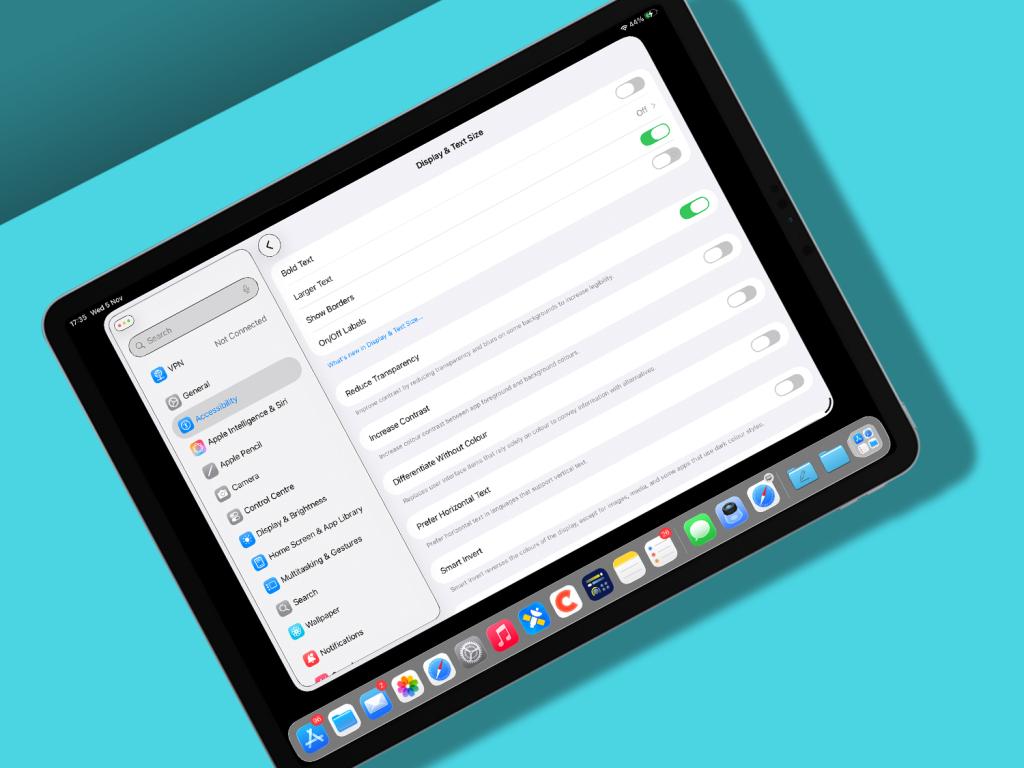
Apple’s Liquid Glass is part Windows Vista, part tech demo, with see-through UI and refracting light. It can also make stuff hard to read. To reduce the effect (which then becomes more Liquid Frosted Glass), open the Settings app and go to ‘Display & Brightness’ > ‘Liquid Glass’ and turn on Tinted.
Take things further
If you still find Liquid Glass an annoyance, it can be further adjusted in the Accessibility area of Settings. Under ‘Display & Text Size’, experiment with ‘Reduce Transparency’ and, if you’d like even more clarity for UI, ‘Show Borders’. Remove most animation by turning on ‘Reduce Motion’ in the Motion section.
Wrangle windows
Go retro
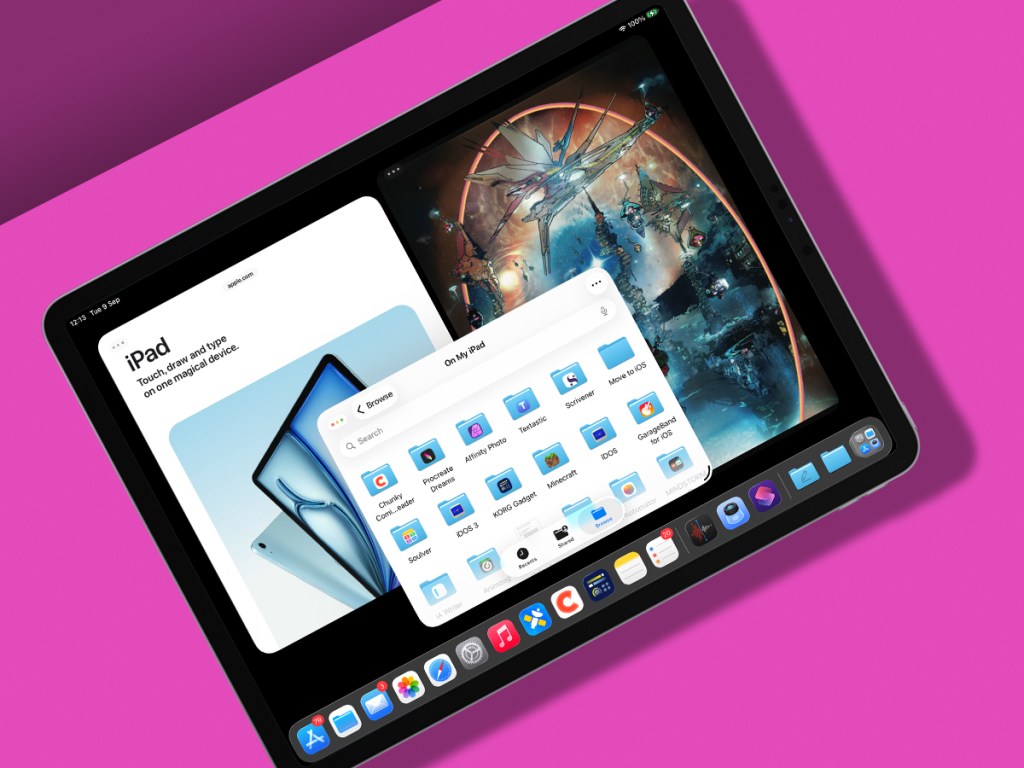
Want to party like it’s 2010, before all the newfangled Split View and ‘iPad windowing system’ gubbins arrived? In Settings, visit ‘Multitasking & Gestures’ and turn on ‘Full-Screen Apps’. A purist single-window-mode Steve Jobs vision of the iPad will exist again, only without fake leather stitching in the Calendar app.
Resize a window
Want something more Mac-like? Turn on ‘Windowed Apps’ instead. Whenever you launch a new app, you’ll see a resize widget at its bottom-right corner. Drag it to resize the window. To reposition the entire window, drag its toolbar.
Flick to the side
You can tap-hold the controls at the top-left of any window and pick a ‘Move & Resize’ option. But it’s far more fun to drag-flick the toolbar left or right to have a window instantly fill half the screen – or upwards to fill it all.
Resurrect Slide Over
After much wailing and gnashing of teeth, Apple brought back Slide Over in iPadOS 26.1. Access it by long-pressing the window controls and choosing ‘Enter Slide Over’. These days, you only get one Slide Over app per display, rather than a stack, but the window can now be resized.
Use shortcuts
Got a physical iPad keyboard? Learn the shortcuts in the Window menu – including those in ‘Move & Resize’ and, as of iPadOS 26.1, ‘Slide Over’. Positioning windows without moving your fingers from the keys is a great time-saver. (To view the menu bar, hold the Globe button or move your cursor to the top of the screen.)
Mac it up

Try new toys
Beyond windowing, various other new features make your iPad more Mac-like. Files is closer to Finder and you can now set default apps to open items. Background tasks don’t conk out the second you have the audacity to switch from Final Cut Pro. And you can select audio input from Control Centre when recording podcasts about how you no longer hate iPadOS.
View PDFs
It’s baffling that it’s taken this long for Apple to bring Preview to iPad, but you now have a capable app for viewing PDFs and images. Tap the sidebar button to get at the familiar thumbnails strip. Alas, you can’t drag pages around (boo), but you can rotate and delete them, and insert new ones.
Dock it
Stash folders
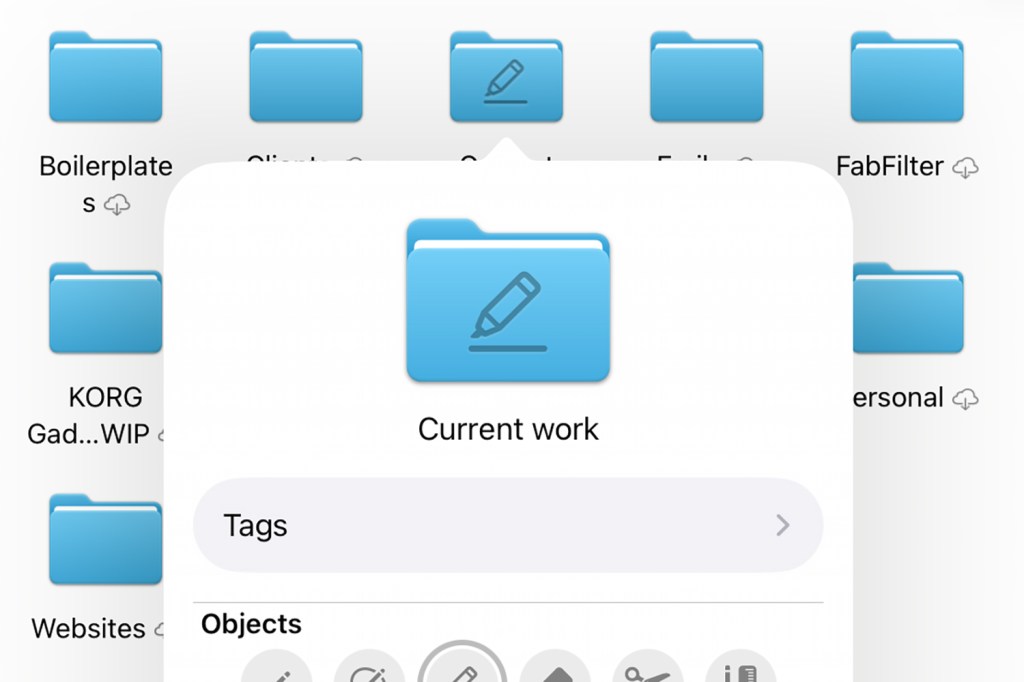
Want fast access to a folder on iPad? Drag it from Files to the Dock, next to App Library. Tap-hold/Control-click it to adjust the folder’s preview, which can be viewed as a grid or list (‘fan’) and sorted in various ways. Documents can be dragged to the Dock as well.
Customise folders
Now got loads of identical folders in the Dock? Tsk. In Files, Control-click each in turn and select ‘Customise Folder & Tags’. Add a suitable icon or emoji, then bask in your design skills – and the fact that as of macOS 26.1, Macs can’t do custom folders in the Dock yet.
Make glass icons
Tap-hold a Home Screen, tap Edit and choose Customise. The new Clear option gives icons a fancy ‘etched glass’ look; the Dark setting improves legibility. But beware: this look leaks into other apps, whether you want that or not.
Make it your own
Sort tasks
Feeling brave? Open Reminders and go to ‘…’ > Auto-Categorise. Your mess of tasks will be sorted into sections. But be wary, because if you have existing headers, this will demolish your setup. Experiment with a copy of a list initially, just in case.
Customise Messages
Irritate friends in Messages by tapping the avatar atop a thread, then Backgrounds, then the animated Aurora or a monstrosity from Image Playgrounds. For your next message, tap + and then Polls to ascertain how much everyone now hates you. Then revel in finally being able to tap-hold a message, choose Select and grab just part of it rather than copying the whole thing.
Snooze less (or more)
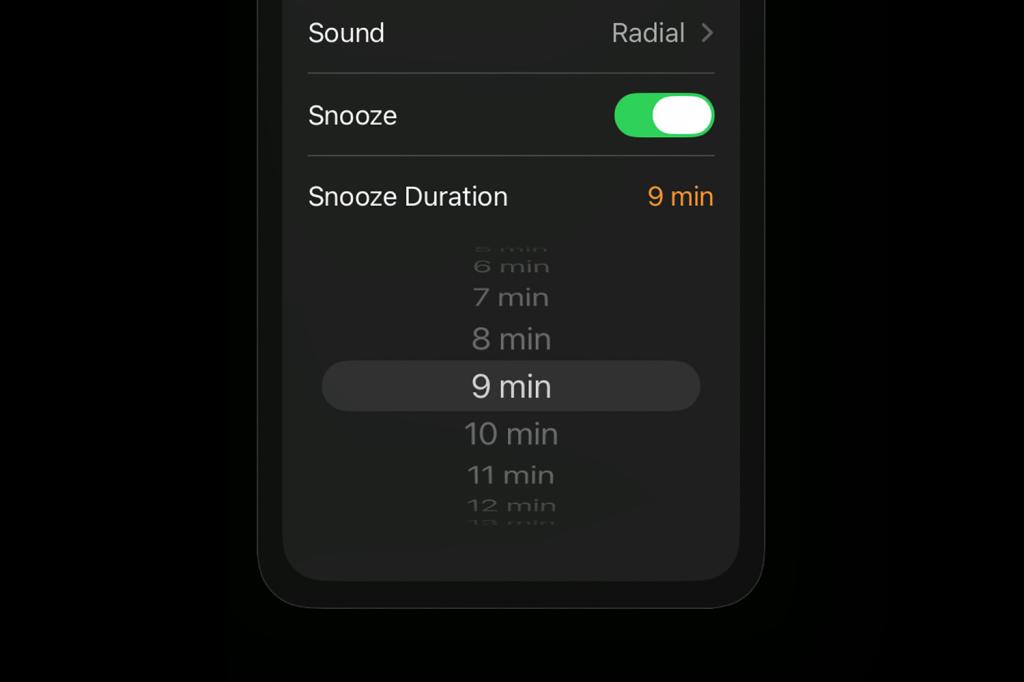
Previously, Apple forced snoozes to be an oddly specific nine minutes long. If you felt that was too much nap, not enough urgency, or actually really stingy, you can now set custom times in the Clock app. Tap an alarm and set ‘Snooze Duration’ to a new value between one and 15 minutes.
Spotlight sounds
Pin albums
In Music, use the pin option found in a ‘…’ menu to pin the album or any individual song to the top of the Library section in the sidebar. The Pins list can be collapsed at any point. You’ll be asked if you’d like to auto-download pinned items. Do so and you’ll always have offline access to your favourites.
Gawp at art
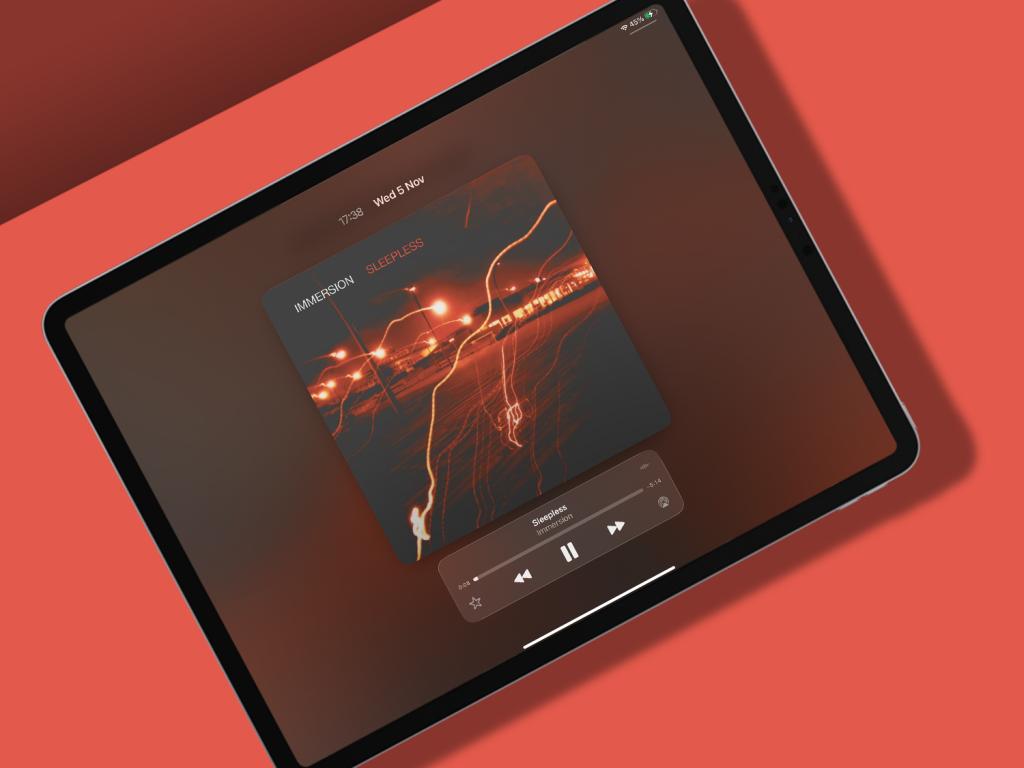
When playing a song in Music, lock your iPad and then bring up the Lock Screen. In iPadOS 26, note how the album art fills much more of the screen, with the playback controls below and the clock now squished above.
Tune controls
Glide through tracks
When a really rubbish track starts playing in Music, you don’t want to battle with Siri to move things on, nor file your finger down to a point to hit the tiny ‘next track’ button. So rejoice that iPadOS 26.1 lets you swipe left to play the next track – and the other way if you want to play the previous one.
Fine-tune podcasts
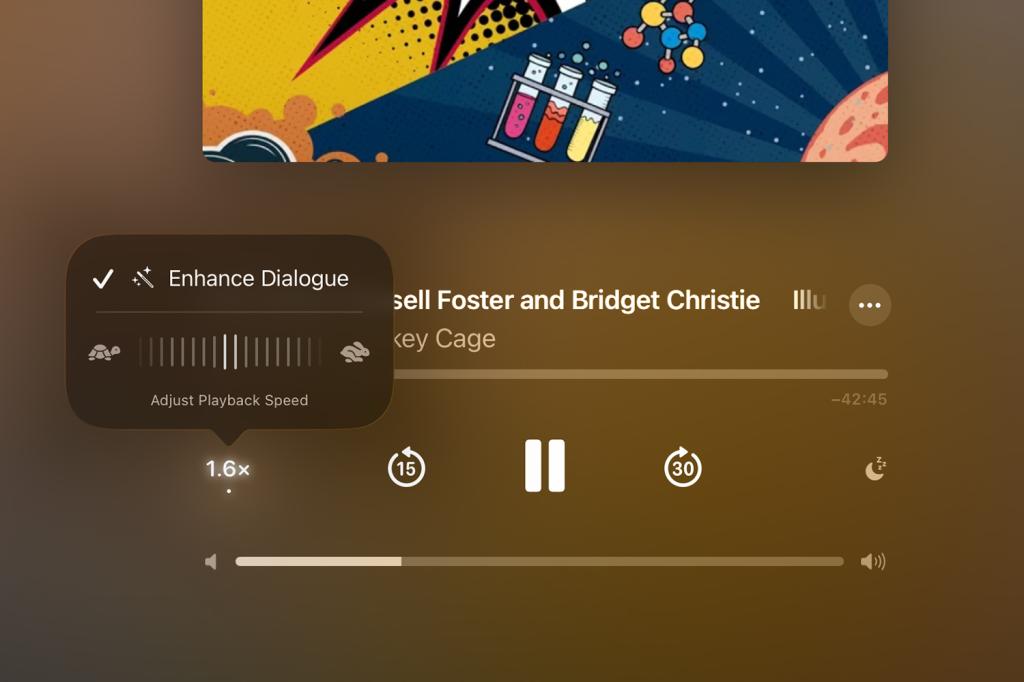
Third-party podcast apps surged ahead of Apple’s by providing all kinds of options to make playback clearer and also faster. Podcasts now gets in on the act. Tap the playback button and use ‘Enhance Dialogue’ to boost voices. You can also drag across the speed options for fine-grained control.
Level up play
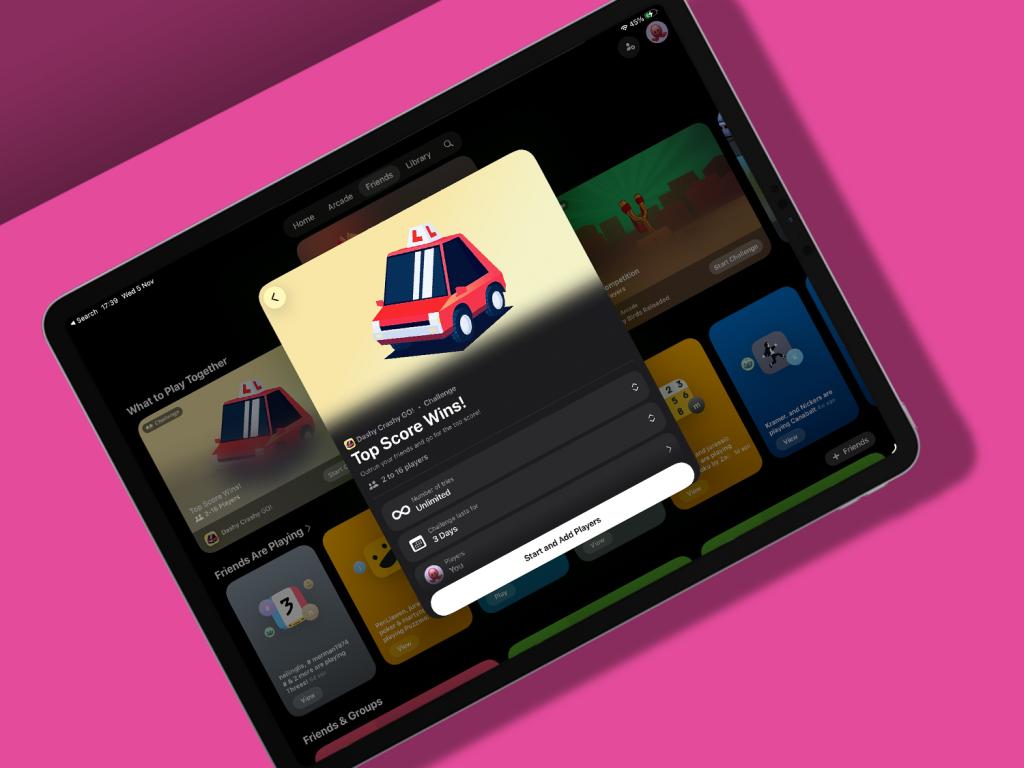
Battle friends
In the Games app, head to Friends, tap ‘Challenge Your Friends’ and pick a game. Choose a challenge, tweak settings (such as the number of tries or days), select players, and try really hard to not start griping when you come last.
View gamepad support
In Library, tap the filter menu next to ‘Your Games’. Select ‘Controller Support’ to filter titles by those you have access to – which you can sort by install date or name – and that work with kit like a GameSir G8 Galileo or a Backbone One.
Make new realities
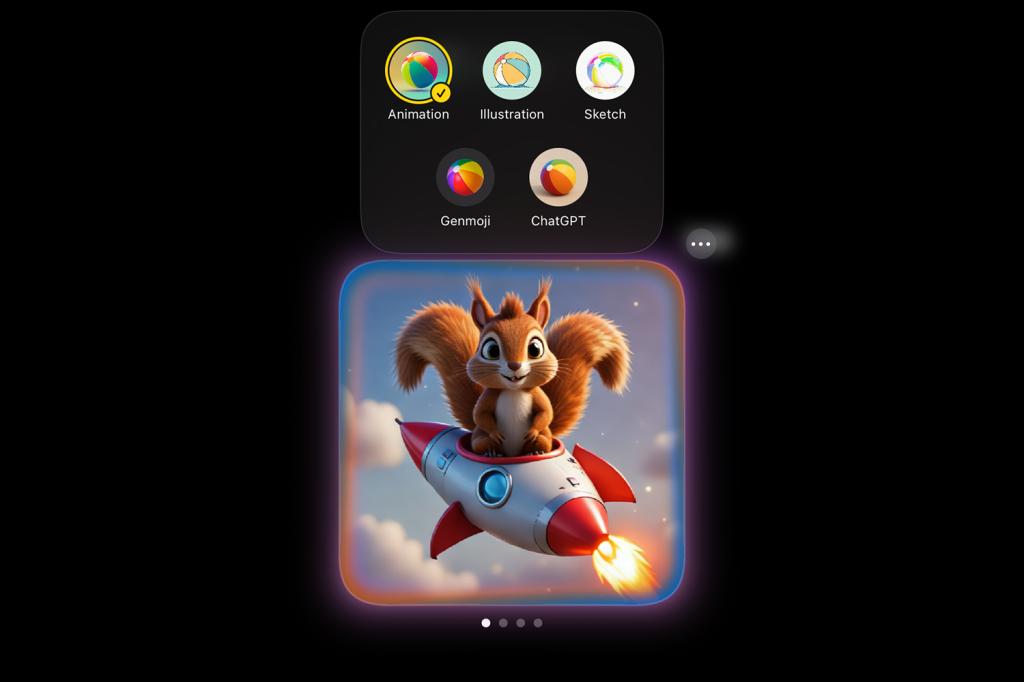
Add a style
Image Playground now has you pick a style before crafting a tiny image. You can choose from a sketch, a Genmoji (also available in Messages – use + > Genmoji) or somewhat more realistic output courtesy of ChatGPT. Not the most life-changing of iPadOS 26 tips, but, hey, I got a weird squirrel on a rocket ship out of it.
Make 3D snaps
To bring your own photos to life, tap one in the Photos app, then hit the tiny ‘Spatial Scene’ button. Waggle your iPad to animate what’s now a tiny 3D scene with parallax. Note: this works with any photo, not just ones taken with swanky new devices.
Quick tips
Reduce Lock Screen swipes: Always accidentally opening Camera with a swipe? In Settings, go to Camera and turn off ‘Lock Screen Swipe to Open Camera’. Sorted.
View the Home indicator: Finally, the Home indicator in iPadOS fades after you open an app. You can still use gestures at the bottom of the screen, though, and the indicator will temporarily reappear while you do so.
Translate everything: In Settings > Apps > Translate, go to Languages and download some. Auto-translate should then kick in for Phone and Messages.
- Now read: Best iPads for home, school and work


 Craig Grannell
Contributor
Craig Grannell
Contributor