These Android and iPhone backup tips could save your data from disaster
Don’t come crying to Stuff if your smartphone is eaten by a shark. Instead, use our tips to get all your Android and iPhone data safely backed up


Imagine for a second that someone snatched your smartphone and fired it out of a cannon into a volcano*. “Cool,” you might say, a second before realising your pride and joy had just been destroyed forever. Then, if you don’t back up your data, your next utterance might be a mite more sweary. All of which is why you should use these Android and iPhone backup tips to make your data safe before it’s too late.
* Or, you know, just stole it. Or perhaps you lost your phone. But, hey, we wanted more drama in this intro. And an excuse for reviewing a smartphone cannon, which someone must surely make?
Smartphone backups: the basics
Don’t rely on the cloud
Storing photos and files in the cloud is fine, but sync isn’t the same as backing up: delete a file and it vanishes everywhere. Also, if something goes wrong (say the cloud provider locks you out or folds), you’re stuffed.
Don’t delay
The best time to back up your data is now… or after reading this. Definitely one of those. Put it off and you risk losing everything. Ideally, back up regularly and before OS updates, and to more than one place.
Fire up your PC
Windows or Mac, make a computer part of your backup plan. Use Apple Devices on Windows or Finder on Mac to take local backups of your iPhone. On Android? Connect your blower to your PC via USB. In Settings > ‘Connected devices’ > USB, tap ‘File transfer’ then drag and drop via Windows File Explorer. On Mac you can use apps like MacDroid (from free), but I prefer WiFi Pro FTP Server ($0.99/50p) on my device and linking over FTP.
Export regularly
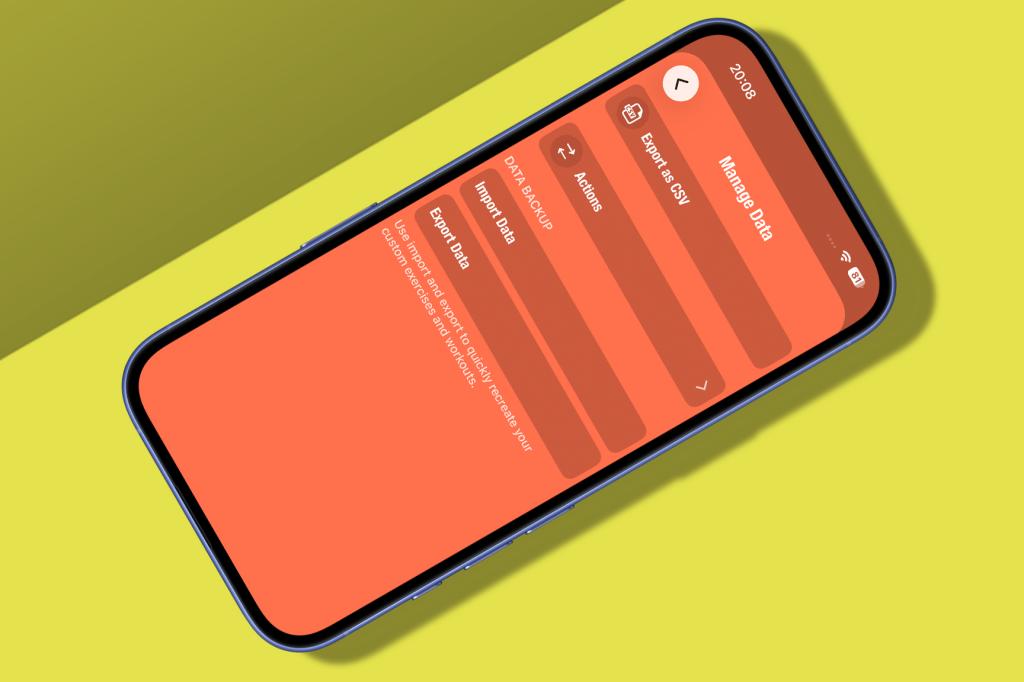
Regular backups are great, but data can still be lost if something goes wrong before a scheduled backup and you don’t notice. So regularly export data from apps you consider important. That way, you’ll always have something to fall back on. WhatsApp chats and 2FA settings may also require manual backups. Set reminders for this.
Test everything
Backups are only useful if they work, so test yours. If you own a spare device, try restoring your backup to it. When setting up a new device, complete the restore before selling the old gear. Backups of individual apps (see below) are easy to test by sideloading them. Also, periodically check that automated backups are actually happening.
Use external storage
Generative AI has made cheap storage a thing of the past. Even so, shop around and a 1TB Samsung T7 or similar external and very portable SSD can be had for around $220/£160, giving you loads of room for important files.
Head to iCloud
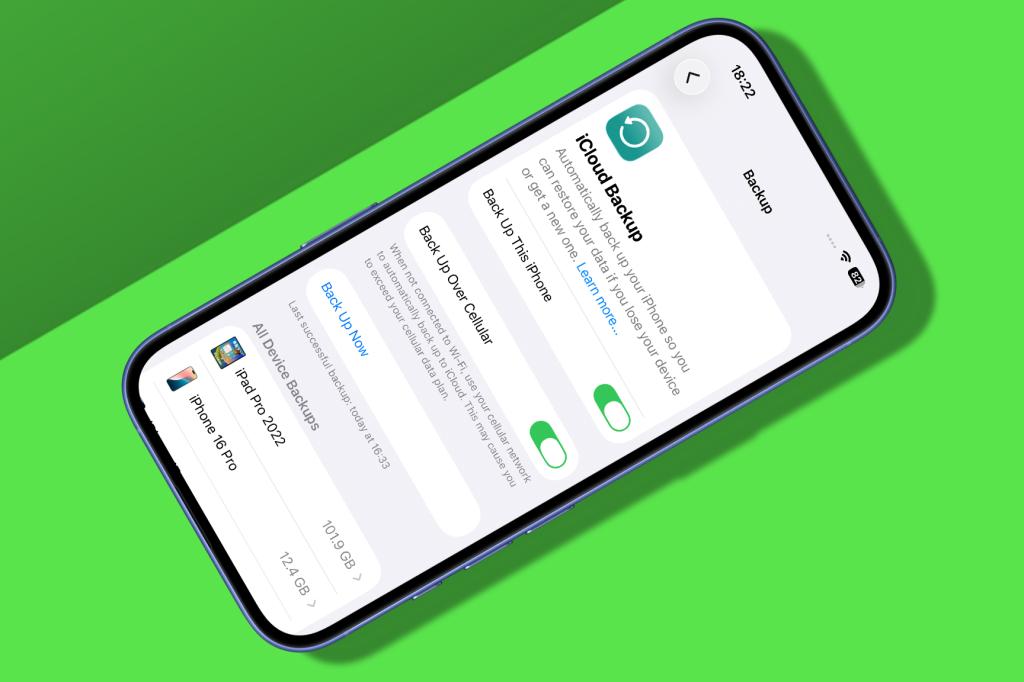
Upload files
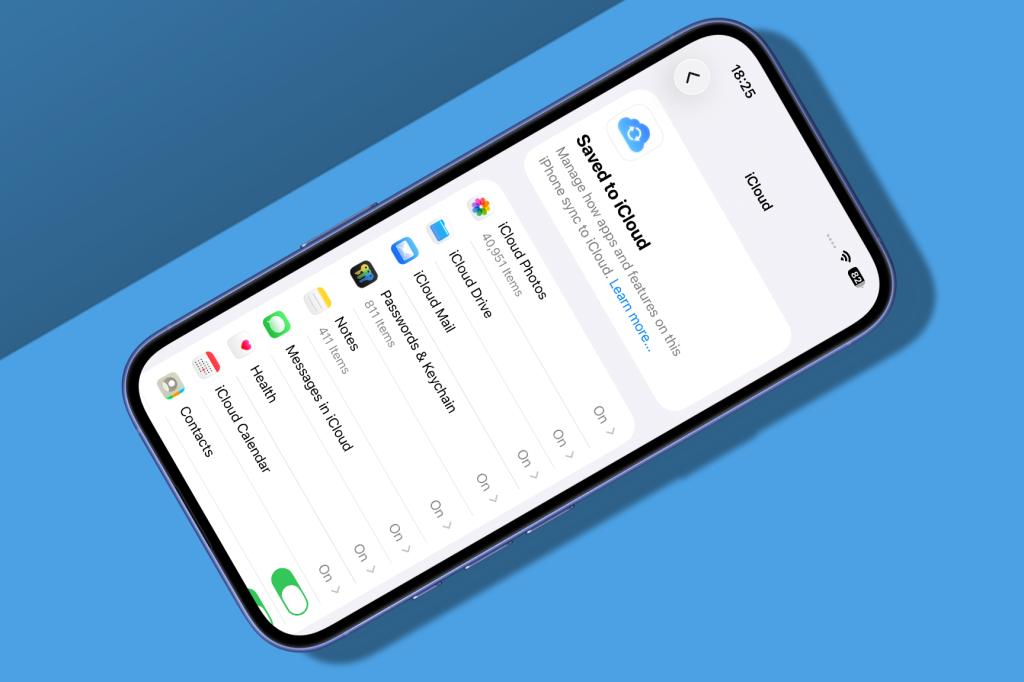
In Settings > iCloud, tap Photos and ‘Sync this iPhone’ to sync your photos and videos with iCloud. Tap ‘<’ and ‘iCloud Backup’; turn on backups. They’ll run overnight while your iPhone is charging and online. Tap ‘Back Up Now’ to start the first one immediately.
Buy more storage
If you lack space to complete the backup, you’ll need to buy more storage (Apple provides a meagre 5GB for free). Go to General > iCloud > Storage to upgrade your plan.
Back up Android
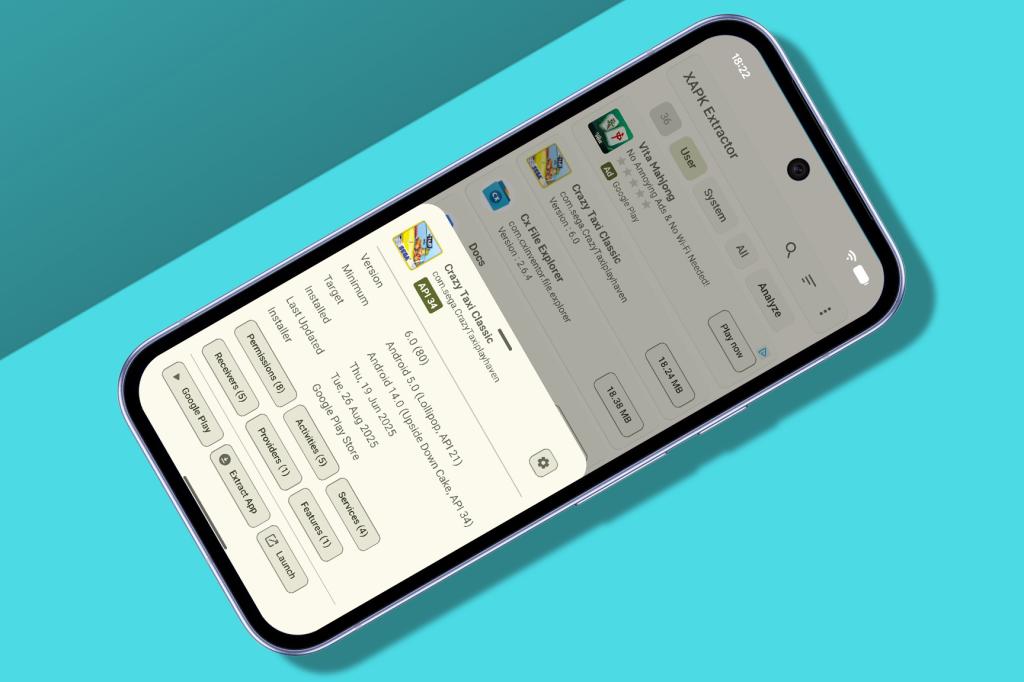
Safeguard your data
Open Settings, tap your name and then ‘Manage backup’. Backups happen when a device is idle. Force one with ‘Back up now’. Tap ‘Manage storage’ to monitor and upgrade your Google One storage.
Save your apps
It’s relatively simple to find dodgy APK files online to sideload; but if you want to save apps you own and reduce the risk of losing them, APK & XAPK Extractor (from free) makes doing so a cinch. Install it, choose a location, pick an app then extract.
Be iMazed
Get connected
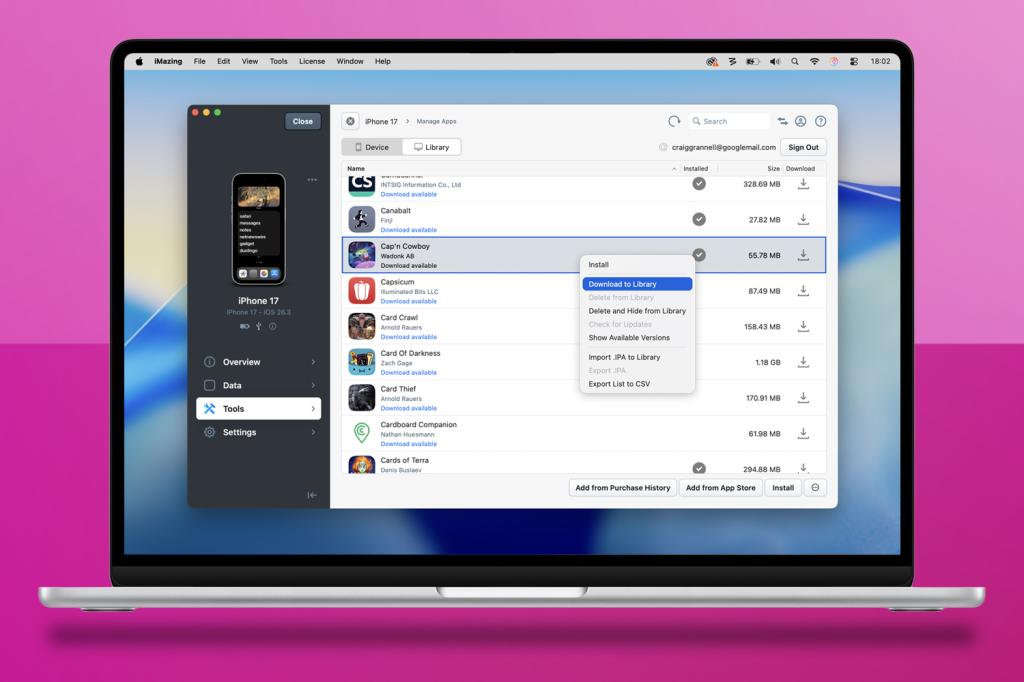
Connect your iPhone to your Mac or PC. Tap Trust if prompted. Install iMazing (from free), launch the app and select your iPhone. Click Tools, then ‘Manage Apps’. Select the Library tab.
Keep apps safe
You’ll see apps you’ve bought that remain on Apple’s servers. Control-click one and choose ‘Download to Library’. When that’s done, control-click again and use ‘Export .IPA’ to save it.
Sideload an app
Go to Data > Apps. Select ‘Copy to Device’ and choose an IPA file. It will install on your phone if still supported. iMazing can also be used to restore apps and games to devices running older versions of iOS.
Head to the future
Prune backups
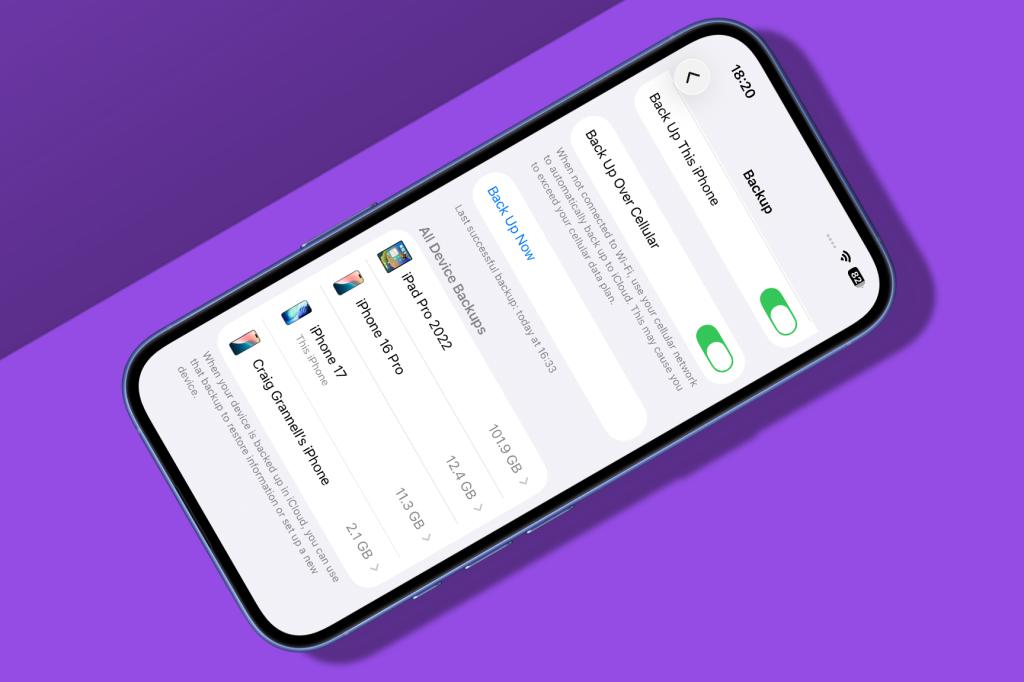
Backups eat into cloud storage. Delete those you no longer need via drive.google.com/drive/backups (Android) or Settings > iCloud > ‘iCloud Backup’ (iPhone).
Restore a backup
With a new or wiped device, go through the setup process, sign into your account and select a backup to restore. If you’ve several, make sure it’s the best one. Again, if upgrading, keep your old device around until certain the backup was good and the restore fully worked.
More smartphone backup app options
Google Photos
Unless you’ve a weirdly small number of snaps, Google’s free 15GB won’t last you long, so buy extra space via Google One ($19.99/£15.99 per year for 100GB). Android has Google Photos tightly integrated, but it’s useful on iPhone too.
Get Google Photos for Android and iOS (free)
iDrive
This service claims to back up all of your devices under a single account. Alas, mobile devices only have photos, videos, contacts and calendar events stashed, along with SMS and call logs on Android. Still, that’s not nothing.
AnyDroid
If you don’t fancy grappling with Windows File Explorer or FTP, AnyDroid does a similar job to iMazing but for Android phones. That is, assuming you don’t pass out approving the terrifying number of permissions it needs…


 Craig Grannell
Contributor
Craig Grannell
Contributor