How to turn off Liquid Glass once you’ve upgraded your iPhone, iPad or Mac to iOS 26
A toggle reducing the effect of Liquid Glass is available on the iPad and Mac software as well

It’s fair to say that Apple’s Liquid Glass design language hasn’t exactly been a roaring success. I think it’s absolutely fine on larger screens in fairness – I’ve got used to it on macOS 26 Tahoe for example and it’s not too invasive on iPadOS 26 either. And it’s essentially a relief that the latest version of the iPad software has finally nailed some decent multitasking features. The windowing feature works well.
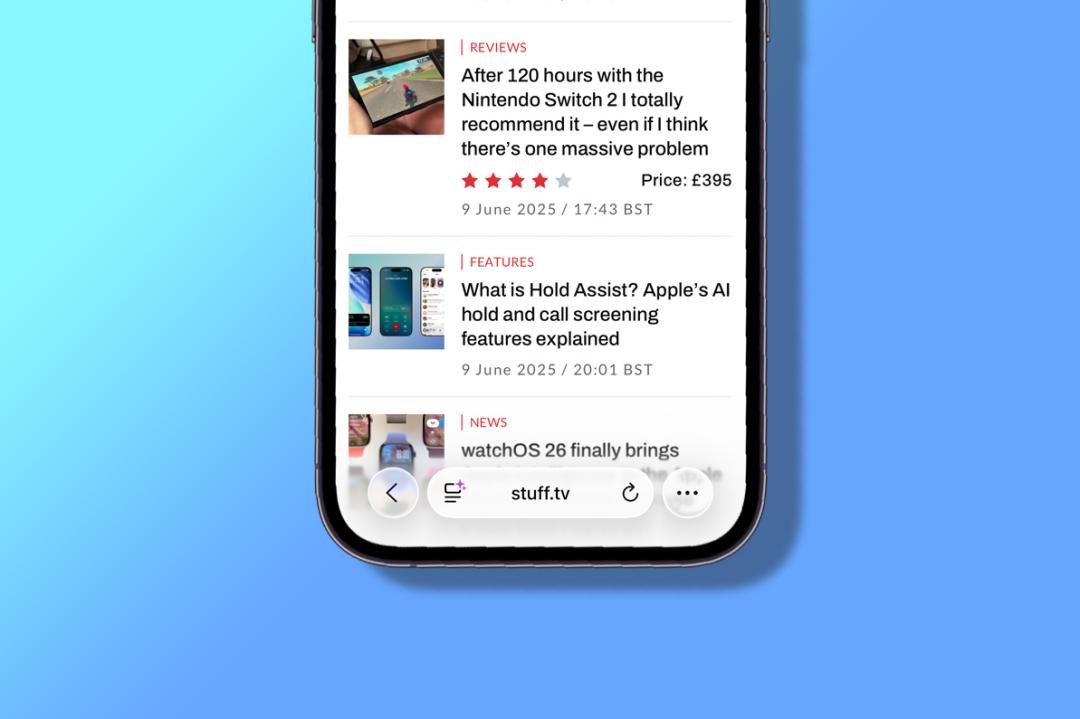
But on the iPhone‘s smaller display, Liquid Glass is a different story for me and as I’ve said in reviews, some apps have become harder to use.
It’s hard to read text in the menu of the Apple Music interface while Safari’s address/search bar is not only small and hard to target properly but the text is also hard to read with the transparency. I found it so difficult in fact, that I just did what I thought I’d have done years ago and replaced Safari with Chrome on my iPhone’s home screen.
However, in the iOS 26.1 update (and later versions), Apple gives the option of reducing the effect of Liquid Glass with a new Liquid Glass toggle that enables you to reduce the level of transparency in Settings > Display & Brightness. An option now gives you the option to instead add a tint to elements, rather than making them almost see-through – the Liquid Glass default, called ‘Clear’ in the menu options.
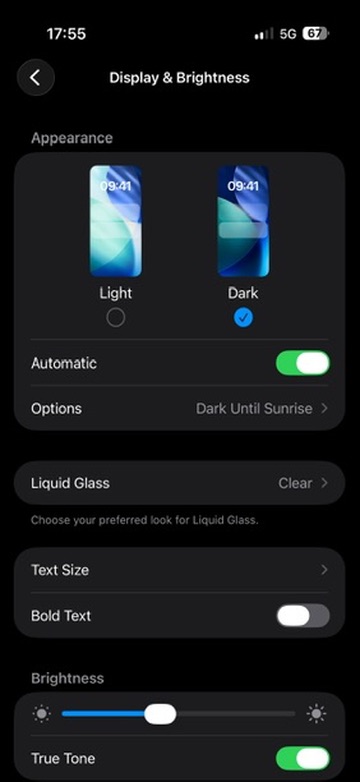
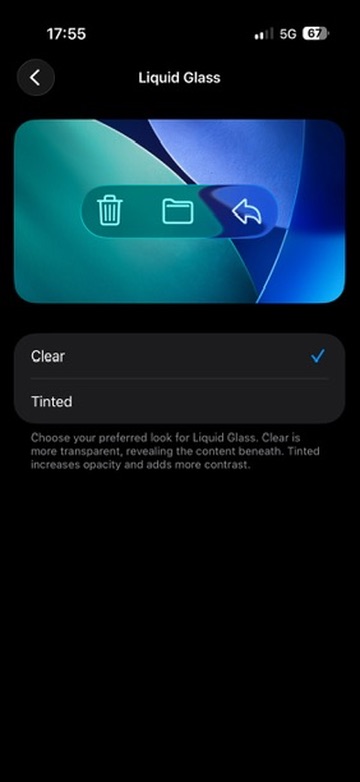
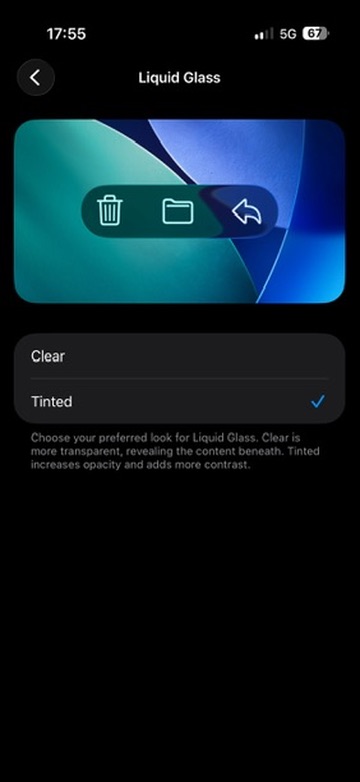
The description on the feature says: “Choose your preferred look for Liquid Glass. Clear is more transparent, revealing the content beneath. Tinted increases opacity and adds more contrast.”
So what’s it like? Well, it basically softens the effect. There’s still a hint of transparency, but it really is just a hint and elements are nearly opaque. It’s a lot better to use in my opinion and will probably assuage those who have made complaints.
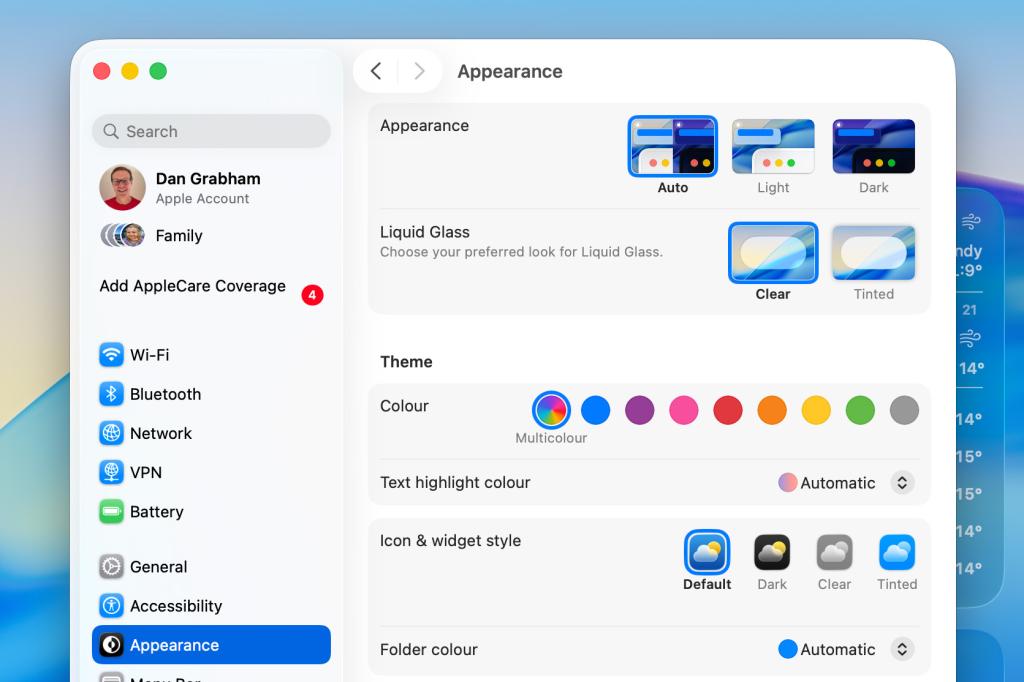
As you might expect, the feature is also available in iPadOS 26.1 and later – again via Settings > Display & Brightness – as well as in macOS 26.1 and later via Settings > Appearance.
All these features appear to be similar to the Accessibility setting called Reduce Transparency that has been present in earlier versions of iOS 26. This toggle says it will “improve contrast by reducing transparency and blurs on some backgrounds to increase legbility”.
In the updates it has released for iOS 26, Apple has also fixed the alarm screen while iPadOS 26.1 and later brought back the popular Slide Over multitasking feature for iPad users, having previously removed it.
Also don’t forget to check out some of our favourite iOS 26 tips and tricks including Call Screening, Hold Assist, polls in Messages and lots more.


 Dan Grabham
Editor-in-Chief
Dan Grabham
Editor-in-Chief