Strength training with Apple Watch? These are the settings I change first
Five minutes in Apple Watch settings before your first lift will make every session after it smarter – here's exactly where to start

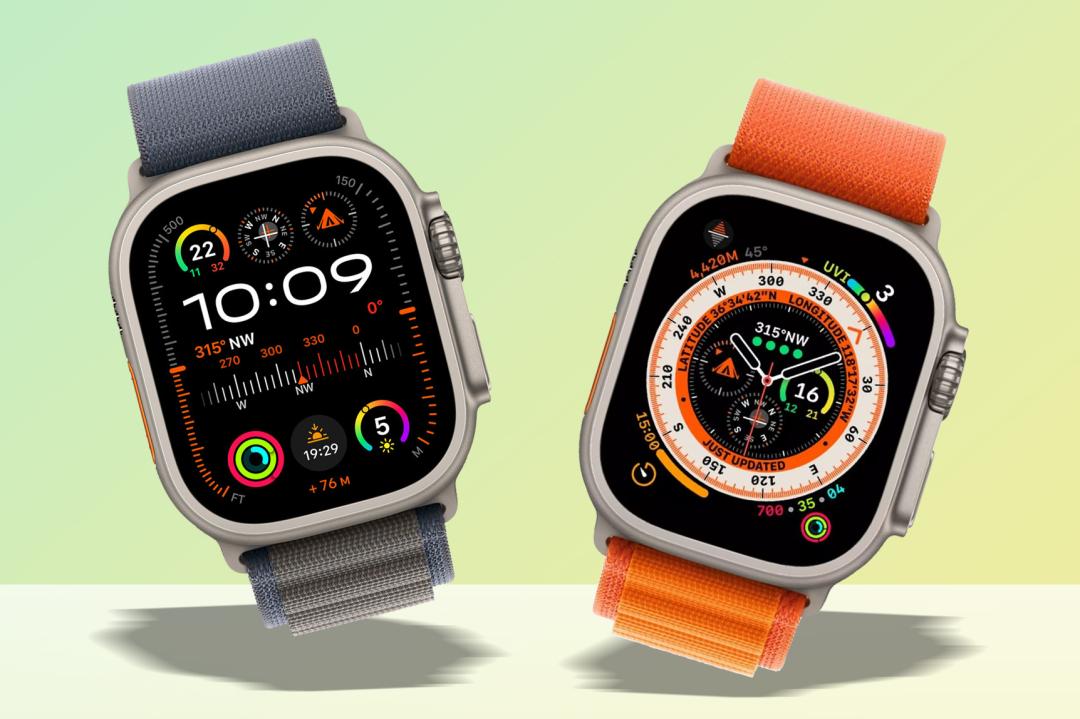
The Apple Watch and Apple Watch Ultra can do a lot more than simply notify you when you get a few likes on Instagram, as these smart wrist adornments also make for pretty powerful fitness trackers.
Both the standard Apple Watch and Apple Watch Ultra use Apple’s optical heart rate sensor, which relies on green LED lights and photodiodes to measure blood flow through your wrist (a method known as photoplethysmography).
During workouts, the smartwatch increases sampling frequency to provide near real-time heart rate data, which feeds into heart rate zones (the intensity of the workout) and, more importantly, a view of total calories burned, which is vital if your strength training programme also involves getting shredded.
Newer Apple Watch models also include electrical heart sensors (used for ECG readings), a blood oxygen sensor (on some models), skin temperature sensing for sleep tracking and advanced motion sensors, including a high-g accelerometer and gyroscope to track movement.
These combine to detect wrist movement, count active minutes, estimate energy expenditure, and identify when you’ve started or stopped exercising.
On Apple Watch Ultra, the dual-frequency GPS system adds greater positional accuracy for outdoor sessions, but for strength training specifically, it’s the combination of optical heart rate tracking and motion detection that underpins most of your performance data.
When combined, this builds a very accurate picture of any strength-based session, particularly the effort involved and how it contributes to the day’s total active calorie expenditure.
But tracking strength training sessions is a little more technical, as it generally involves keeping an eye on reps, sets, and the amount of perceived effort in order to force progressive overload – or the act of generally making each session harder to increase strength and muscle size.
Doing this isn’t immediately obvious on an Apple Watch, but there are a number of settings you can tweak to make that strong life easier.
1. Avoid distractions
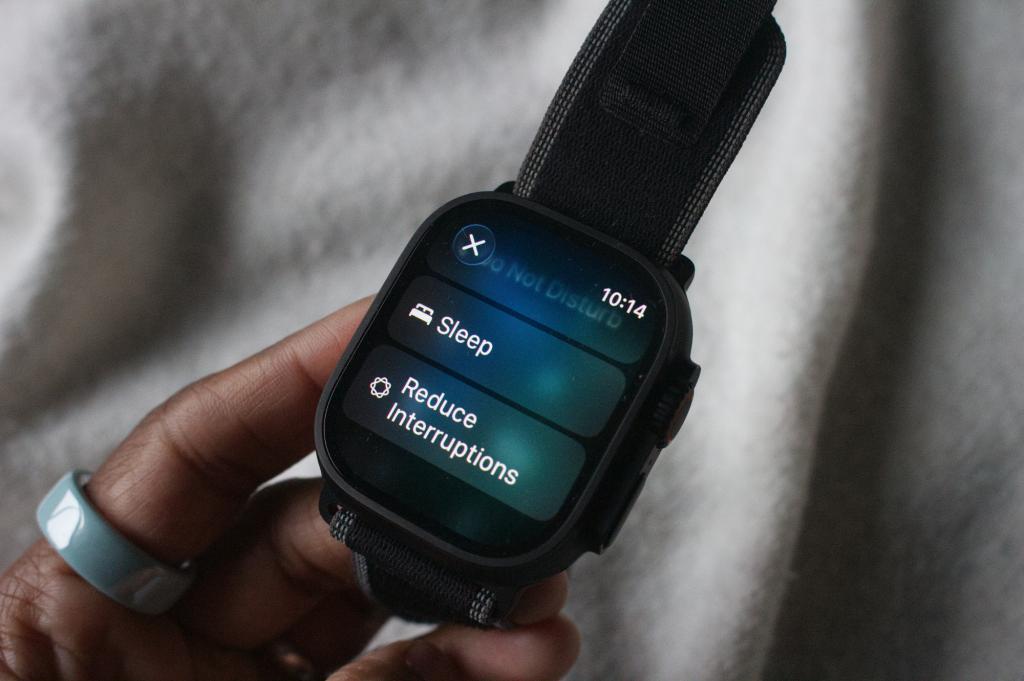
The Apple Watch automatically enters a Workout Focus Mode when a workout is selected, but it is possible to customise this so the watch face gives instant readouts on those stats that matter most without having to swipe around so much.
Head to Settings > Focus > Fitness (or Workout Focus, depending on your watchOS version) and first block incoming notifications to kill off distractions. You can then select what appears on the focus screen.
Many Apple Watch users can also pair this with a dedicated watch face that prioritises heart rate, activity rings and quick access to the Workout app. You can even set it to activate automatically when entering your gym’s location.
2. Tweak the built-in workout apps
There are a couple of built-in workout apps that do a pretty good job of tracking strength training sessions. For those hybrid athletes who like to throw in a hefty amount of cardiovascular work into sweaty sessions, the Functional Strength Training app is a good start, while Traditional Strength Training is better for pure weight-lifting.
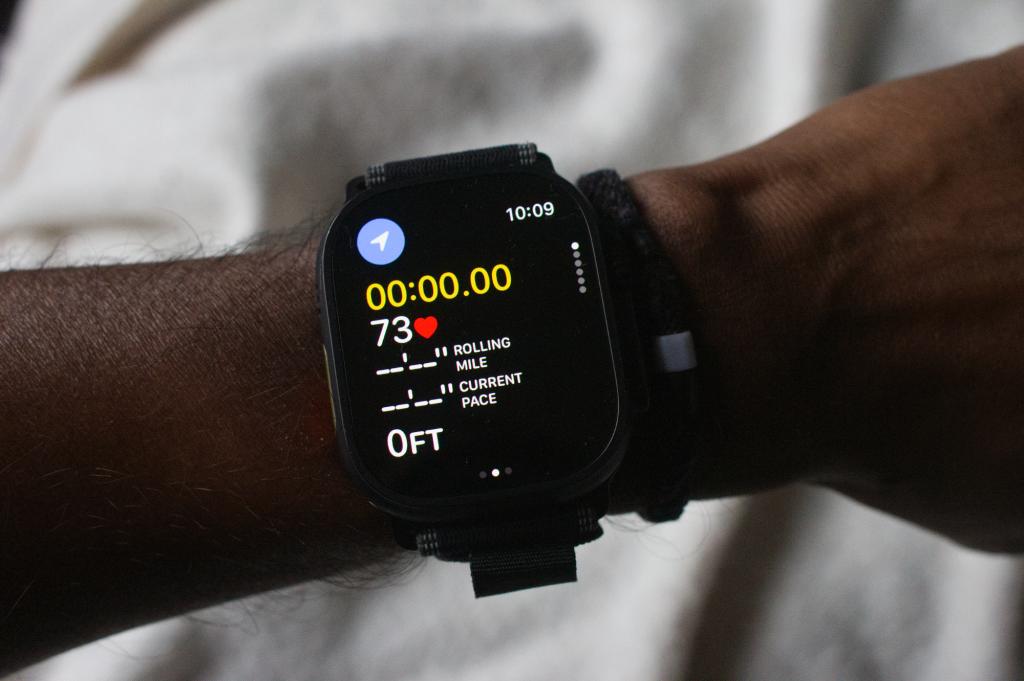
But even within these apps, it is possible to customise the view to include those stats that matter most to you. Simply tap the three dots within the workout app, select preferences and hit Workout Views.
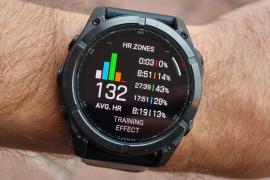
From here, it’s a good idea to add metrics like heart rate, active calories and heart rate zones, which give a great indication of effort. Ideally, pushing hard on strength training should see fitness enthusiasts force their heart rate into Zone 3 or Zone 4.
Apple Watch Ultra users can also map the Action Button to start a new segment, which can be good for getting a detailed breakdown of each set.
For example, you might want to treat each individual exercise as a segment, so you can see how many calories you are burning on each, or how much time you are dedicating to one body part.
3. Create custom workouts
Ideas on strength training vary wildly between individuals, with some sticking to the traditional approach of lifting as heavy as possible with maximum rest between sets, while others follow a more modern hybrid approach of raised heart rates and minimal rest.
We aren’t here to tell you what’s best, but it is worth setting up custom workouts or timers to keep track of rest, as this informs whether you’re training for hypertrophy (exhausting the muscle to promote growth with less rest) or increasing physical strength with longer periods of downtime between sets.
In Custom Workouts, you can set up a specific number of sets for any exercise with a timer for the individual exercises, as well as the rest periods in between. The Apple Watch will give both haptic and audio feedback on when it is time to stop and start.
However, unlike Garmin and some rival fitness trackers, native Apple Watch workout apps don’t track individual reps using the built-in gyroscopic sensors, so you’ll have to make notes of those manually. This brings us on to…
4. Voice Notes are your friend
Back in the day, a trusty paper pad and pen would be enough to keep track of weights, sets, reps and perceived effort on any strength-building session, but technology can streamline this.
You can map the Action Button to kick-start a voice memo on Apple Watch Ultra, while other Apple Watch users can edit their watch face to include a shortcut to voice memos.
After each set, you can record a quick voice memo that explains the max weight lifted, the number of reps and even how that particular exercise felt. This will assist with progressive overload during future sessions, which is essential for building both size and strength.
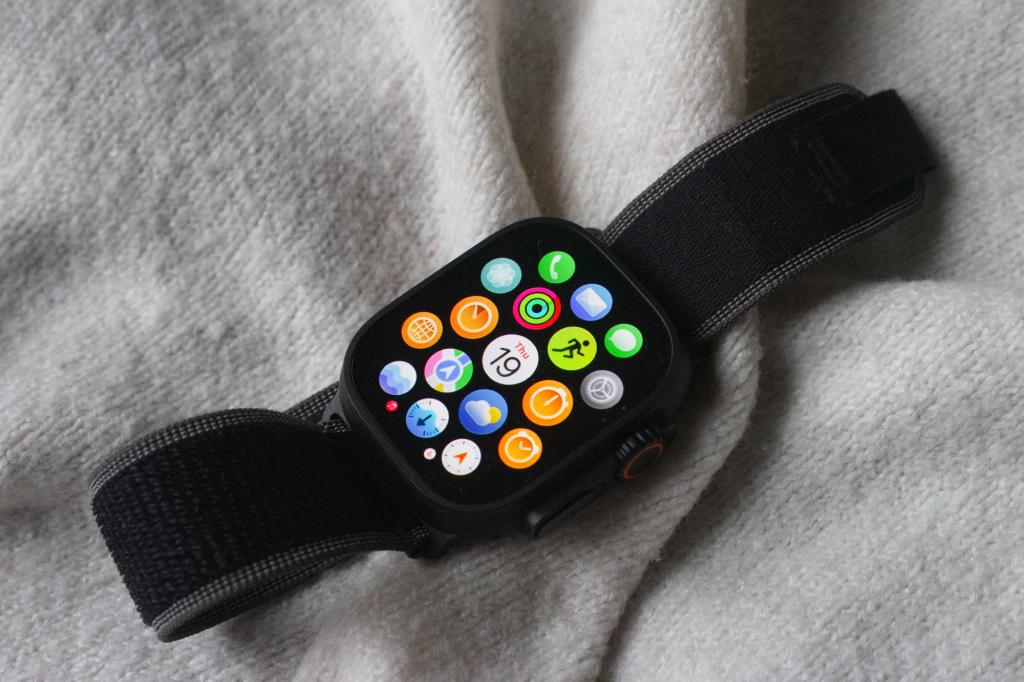
5. Load up on third-party apps
If all of that sounds like too much effort, there are a bunch of third-party fitness apps that work seamlessly with Apple Watch to do everything from building a dedicated strength programme to counting weight and reps from the watch directly.
This means you won’t have to transcribe voice memos and manually stick them all in an Excel spreadsheet later on in the day, as these apps will consolidate the data automatically and then pump it all out in easy-to-read graphs.
Check out Strong, Hevy and Ladder for strength and fitness tracking solutions that don’t require quite as much of a workaround.
Liked this? As a fitness expert, this is the fitness tech I actually use (and what I ignore)


 Leon Poultney
Freelance Automotive and Tech Writer
Leon Poultney
Freelance Automotive and Tech Writer