The best macOS 26 Tahoe tips and tricks I’ve found so far to power up your Apple Mac
Apple’s latest Mac software update, macOS 26.1, arrived in November. Here are the best macOS Tahoe tips and tricks to get you started


As ever, there’s another major update for your Mac laptop or desktop. This one’s macOS 26 – or Tahoe to its friends. I’ve been digging through it since the beta. Below, you’ll find the best macOS 26 tips I’ve found so far.
Not sure whether macOS Tahoe will run on your Mac? Before sadness ensues, check out our macOS 26 system requirements guide. And do backup your gear before hitting the install button, just in case.
Tame Liquid Glass
Add a tint
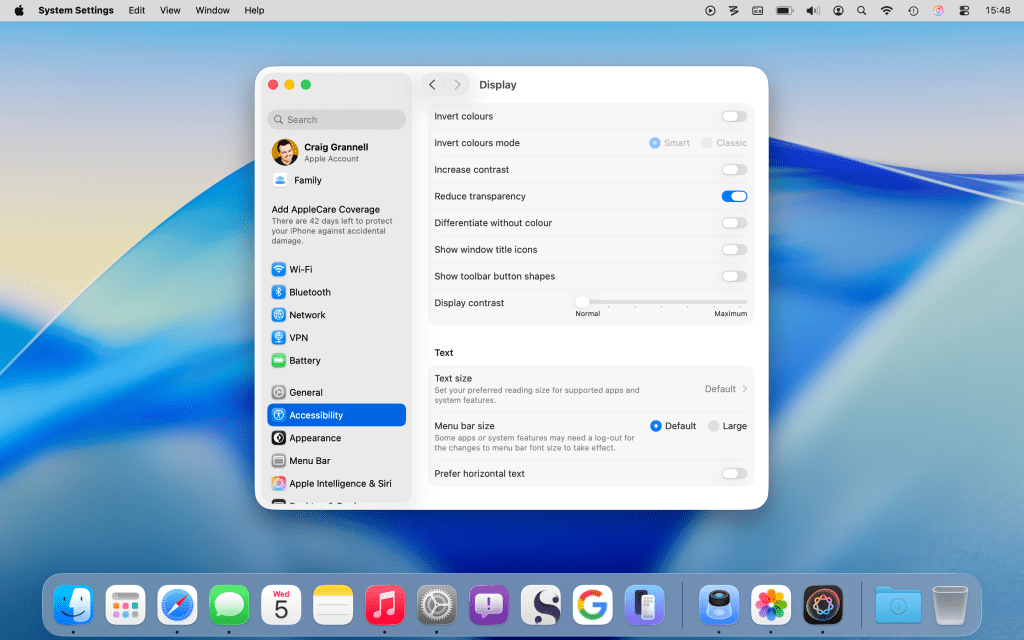
Apple’s Liquid Glass is part Windows Vista, part tech demo, with see-through UI and refracting light. It can also make stuff hard to read. To reduce the effect (which then becomes more Liquid Frosted Glass), open the System Settings app and go to Appearance, then turn on the Tinted option under ‘Liquid Glass’.
Take things further
Hate the lack of a menu bar background? Bring it back via ‘Menu Bar’ > ‘Show menu bar background’. Tone down Liquid Glass further in the Accessibility area of System Settings: turn on ‘Reduce Transparency’ under Display and ‘Reduce motion’ in the Motion section.
Unleash Spotlight

Access categories
Command + Space still brings up Spotlight. But in macOS Tahoe, you can now use Command + 1, 2, 3 or 4 to limit a search to apps, files, actions or clipboard history. Use the ‘…’ menu to refine the view, cursor keys to navigate, and lozenge buttons to further filter results.
Search an app
Use Tab to search within key apps. For example, type Photos, Tab, then a term, then Return, to open a search in Photos. Or type Safari, Tab, then a term to search your bookmarks and history.
Limit clipboard history
Don’t want your clipboard history hanging around? In System Settings, go to Spotlight and change the ‘Clipboard history is available in Spotlight’ value to ‘30 minutes’. Other options are ‘8 hours’ or ‘7 days’ – or you can turn off clipboard history entirely.
Outshine Spotlight: Alfred
If Spotlight for Mac is now kind of ‘Spotlight Pro’, that’s only because it’s borrowed from other launchers. Which makes Alfred ($46/£34) kind of ‘Spotlight Pro Pro’. It’s fantastic – and better than Spotlight – for search, music control, workflows and performing actions on any files that you find.
Own the menu bar
Track events
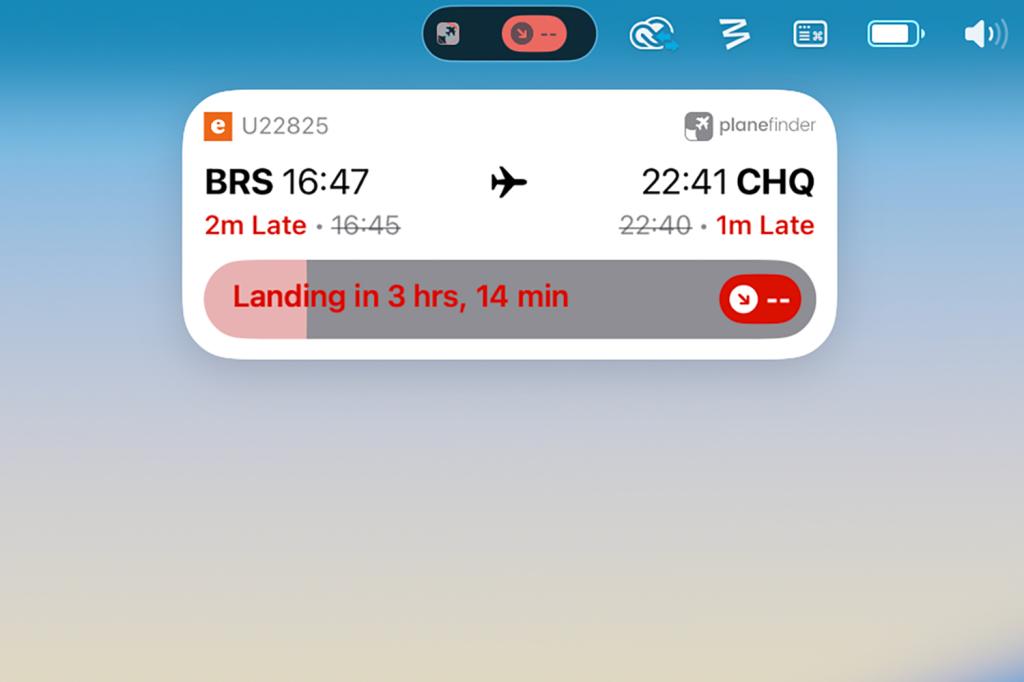
Last year’s operating systems made it possible to mirror an iPhone on your Mac. This now extends to Live Activities, which appear in your menu bar. Click one while it’s lurking. Its parent app will then open in the mirrored iPhone, right on your Mac.
Edit controls
If you’re wound up that macOS is increasingly cosplaying as iPadOS, take solace in Control Centre bringing across the tablet version – you can now click ‘Edit Controls’ to rearrange existing controls and add new ones.
Work smarter
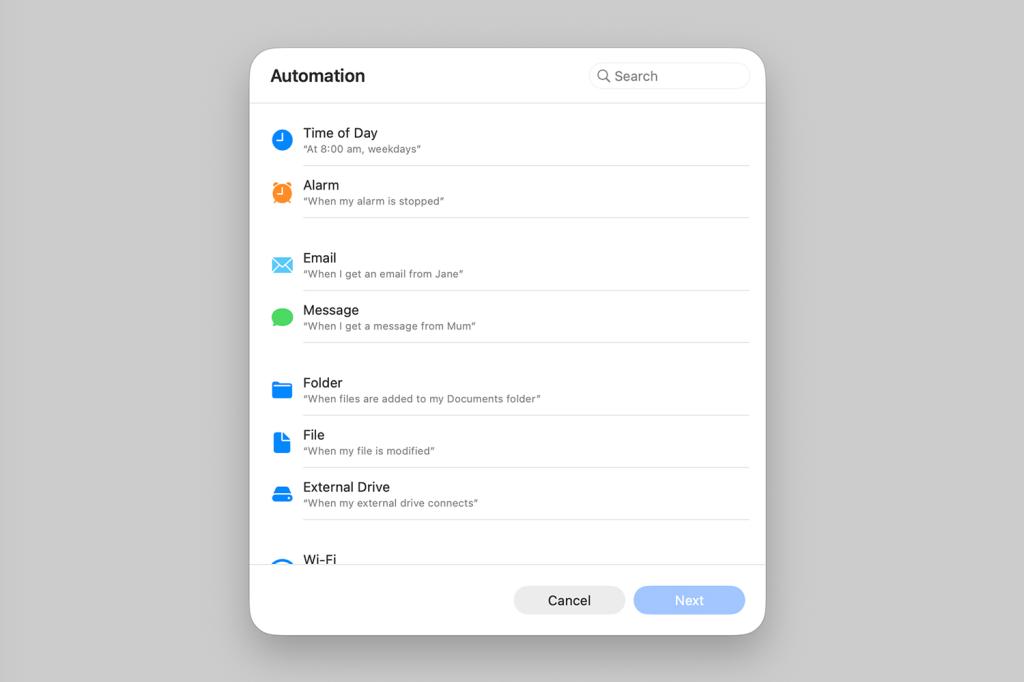
Automate shortcuts
Your iPad could already run shortcuts based on specific criteria; now macOS gets in on the trick. Open Shortcuts and select Automation from the sidebar. Click ‘+’ and you can then put together actions triggered by time, received messages, items being added and more.
Sort tasks
Feeling brave? Open Reminders and go to File > Auto-Categorise. Your mess of tasks will be sorted into sections. But be wary, because if you have existing headers, this will demolish your setup. Experiment with a copy of a list initially, just in case.
Translate everything
Want to chat to someone who doesn’t speak your language? Preload languages in System Settings by going to General > ‘Language & Region’, clicking ‘Translation Languages’ and then clicking relevant language buttons. Auto-translate should then kick in for Phone and Messages – albeit between two languages only.
Snooze less (or more)
Previously, Apple forced alarm snoozes to be an oddly specific nine minutes long. If you felt that was too much nap, not enough urgency, or actually really stingy, you can now set custom times in the Clock app. Click an alarm and set ‘Snooze Duration’ to a new value between one and 15 minutes.
Clean up: Hazel
As noted above, Shortcuts for Mac now lets you perform actions on folders based on specific events occurring. But Hazel ($42) is a great option if you want something that’s more powerful and yet also dead easy to use. You build rules based around conditions and actions and then let them rip on folders, thereby sorting, filing, tagging and uploading items with ease.
Make it your own
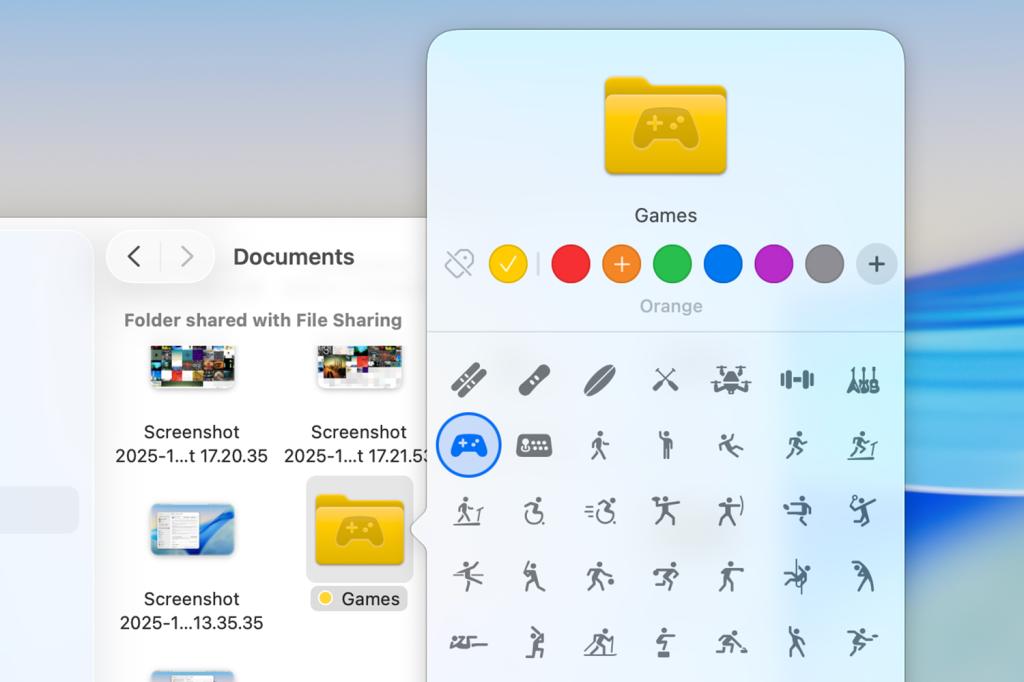
Help folders stand out
Got loads of identical folders in Finder? Tsk. Control-click each in turn and select ‘Customise Folder…’. Add a suitable icon or emoji, then bask in your design skills. (As of macOS 26.1, custom folders revert to generic plain blue ones in the Dock. Boo.)
Customise Messages
Irritate friends in Messages by clicking the avatar atop a thread, then Backgrounds, then the animated Aurora or a monstrosity from Image Playgrounds. For your next message, click + and then Polls to ascertain how much everyone now hates you.
Make glass icons
Hate that you can tell app icons apart? So does Apple’s design team. In macOS Tahoe, they all have the same shape and you can give them the same colour too, by opening System Settings, going to Appearance and fiddling with ‘Icon & widget style’. Clear makes them look like etched glass. Dark improves legibility.
Add a style
Image Playground now has you pick a style before crafting a tiny image. You can choose from a sketch, a Genmoji (also available in Messages – use + > Genmoji) or somewhat more realistic output courtesy of ChatGPT. Not the most life-changing of macOS 26 tips, but, hey, I got a weird squirrel on a rocket ship out of it.
Pin albums
In Music, use the pin option found in a ‘…’ menu to pin the album or any individual song to the top of the Library section in the sidebar. The Pins list can be collapsed at any point. You’ll be asked if you’d like to auto-download pinned items. Do so and you’ll always have offline access to your favourites.
Level up play
Battle friends
In the Games app, head to Friends, click ‘Challenge Your Friends’ and pick a game. Choose a challenge, tweak settings (such as the number of tries or days), select players, and try really hard to not start griping when you come last.
View gamepad support
In Library, click the filter menu next to ‘Your Games’. Select ‘Controller Support’ to filter titles by those you have access to – which you can sort by install date or name – and that work with kit like a GameSir G8 Galileo or a Backbone One.


 Craig Grannell
Contributor
Craig Grannell
Contributor