How to set up and use Apple Pay on iPhone, Apple Watch and Mac – plus how it keeps your details secure
Ready to give Apple Pay a try? Here's everything you need to know about the tap-to-pay service


It’s now over a decade since Apple Pay first launched. Sure, contactless payments were a thing before, but anyone who had an iPhone in 2013 (then one of the best phones on sale) was able to move on from physical bank cards almost overnight in countries that supported it.
Since then, contactless payment has grown massively. Some reports say that Apple Pay is responsible for a staggering $6 trillion of global transactions per year. That’s an awful lot of people tapping their phones at kiosks and card terminals – and yet, it’s still a little niche in some places and for others – such as China – other payment apps like WeChat and AliPay reign supreme instead.
Unsurprisingly, Apple Pay is exclusive to Apple products. For Android devices, you’ll have to use other mobile payment apps, such as Google Pay for Android.
If you’re not in the Apple Pay zone yet, we’ve got you covered with everything you ever wanted to know about it, including how to set it up on your device and how to use it in stores or public transport.
How does Apple Pay work?
Apple Pay is essentially a digital wallet saved on your device , albeit without the collection of ragged coffee loyalty cards. It replaces your physical cards with a private payment method, and can be used in physical stores, online, or within apps. Virtual credit and debit cards appear in the Wallet app alongside other Apple Wallet cards like tickets and loyalty cards.
Is it secure?
It is secure because it doesn’t store or share your actual card number with those selling goods or services to you. Instead, it uses a unique device account number and a one-time security code for each transaction.
Your payments are also protected by biometric authentication such as Face ID or Touch ID (or your device passcode), depending on which iPhone or other Apple device you’re using. The key thing is that only you can authorise purchases.
Your card details are encrypted and stored in a secure chip on your device, helping to protect them from theft or fraud.
When you make a purchase, neither Apple nor your device will send your card number to the person you’re buying from. If you’re paying for something online in Safari or through apps, the merchant only receives the info you need to share to get your package – your name and address, for example.
How to add your cards
Consolidating your physical credit and debit cards is pretty easy. Open the Wallet app on your iPhone, tap the + icon, pop in your card number (or scan it with your camera) and it’s ready to go. Most cards will require some extra confirmation through your bank provider, though, so this could be a code via text, an automated call or your banking app.
Apple Pay doesn’t affect your card details in any way. That means you will still get all your benefits and rewards, from supermarket points to air miles, but without the plastic
How do I pay for things?
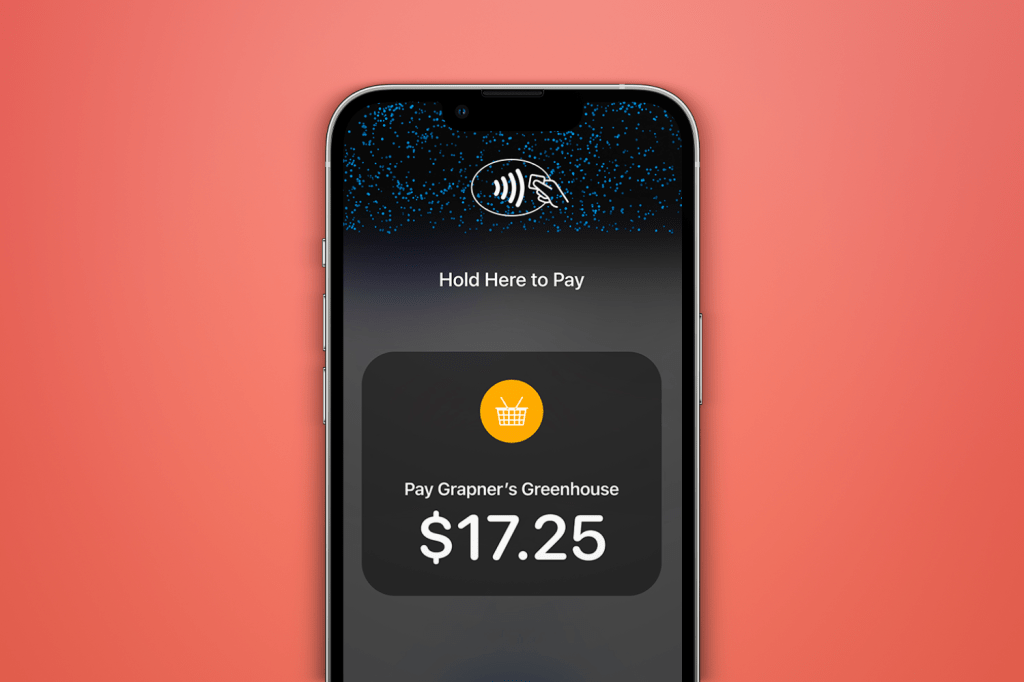
Handing over your money digitally depends on what device you’re using, but all work roughly the same way.
To pay with your iPhone:
1, If you’re using Face ID, double-click the side button. Put your face to the screen or enter your passcode to open Apple Wallet if required. Still rocking an older model with Touch ID? Double-click the Home button instead.
2, To use a different card, tapping your default card will open to see your other cards. Tap the one you want and authenticate if required.
3, Hold the top of your iPhone near the contactless reader, and that’s it.
To pay with your Apple Watch:
1, Double-click the side button.
2, Your default card will open automatically, but you can scroll down to choose a different card.
3, Hold the display of your Apple Watch near the contactless reader until you feel a gentle tap and hear a beep.
Using Apple Pay online
Things work a little differently for the iPad and Mac, which is to be expected. There’s nothing convenient about whipping an iPad out a dinner, after all. You can use Apple Pay to pay online in Safari, or through apps when Apple Pay is an option.
1, Tap the Apple Pay button or choose Apple Pay as your payment method.
2, To pay with a different card, tap the Next button, or the Expand Menu button next to your default card.
3, You may need to add your billing, shipping, and contact information. That won’t be needed all the time, though, as Apple Pay stores that info.
4, Confirm the payment.
For an iPad with Face ID, double-click the side button, then use Face ID or your passcode. For iPads without Face ID, simply use Touch ID or your passcode.
If you’re on a Mac with Touch ID, follow the prompts on the Touch Bar and place your finger on Touch ID. If Touch ID is off, tap the Apple Pay icon on the Touch Bar and follow the prompts on the screen.
For the primitive amongst us – Mac users without Touch ID, that is – you’ll have to confirm the payment on your Bluetooth-connected iPhone or Apple Watch. Make sure that you’re signed in with the same Apple ID on all devices, though. When your payment is successful, you’ll see Done and a checkmark on the screen.
How much can I spend?
There’s technically no limit to how much one can spend using Apple Pay. Some countries may block contactless payments over a certain amount but that’s true of all contactless methods, not just Apple Pay.
In the US and Canada there’s no legal contactless limit. Banks, card issuers and financial institutions each have their own rules, which has famously always ended well. Americans can tap to their heart’s content throughout the nation, and that’s what freedom is all about.
Which banks/cards are supported?

There once was a time when Apple had to convince the banks to go contactless. Now, if you can name it, it’s more than likely Apple Pay-friendly. All the big hitters are on board, with more smaller players joining all the time. In the US, the full list of accepted banks is now in the hundreds and covers banks from Alabama to Wyoming. The UK list also covers a huge number of names.
Where can I use it?
Because Apple Pay uses plain ol’ NFC for purchases, stores don’t need special equipment to read your device’s signal. In fact, Apple Pay works anywhere that takes contactless payments, from supermarkets to train station vending machines. Many independent businesses and market traders take Apple Pay too, thanks to portable NFC readers. Recent iOS changes mean even a bog-standard iPhone can be used to take Apple Pay payments.
Apple Pay works while travelling overseas, too. If a place accepts contactless payment, then it’ll likely accept Apple Pay. That said, some banks may not be accepted abroad, and there may be a few hidden charges to boot.


 Dan Grabham
Editor-in-Chief
Dan Grabham
Editor-in-Chief