How to use Apple News – and what extra does Apple News+ give you?
Apple News is slick to use, looks great and includes loads of fantastic articles from many of the world's top titles. And, of course, Stuff is among them. Here's how you get the best from it

Apple News is slick to use, looks great and includes loads of fantastic articles from many of the world’s top titles. And, of course, Stuff is among them. Apple News debuted back in 2015 as part of iOS 9.1 and equivalent releases for iPad and Mac.
It’s the successor to the old Newstand app that used to let you subscribe to magazines. Now, Apple News takes stories from the web as well as newspapers and magazines and presents them in a user-friendly way.
So how do you get the best out of it? Funny you should ask that…
Tapping on Apple News will bring up a slick ‘Welcome to News’ screen and then an Apple Music-style list of icons for both publications and topics you’d like to read about.
If you want to read the best tech content on the web, we’d humbly suggest plonking your finger on us. Other gadget websites are also available; some of them are even quite good. In addition to this geekery, there are plenty more general news sites like The Atlantic, CNN and BBC News as well as most newspapers and magazines.

How does it learn what you like?

The more you use the app and tell it what you’re interested in, the better time you’ll have with it. Each story has thumbs up and thumbs down icons in the top left so you can easily the app what you like and what you don’t. You can also block channels, though if homepage editors have manually selected pieces, these will just show up as being blocked, which isn’t so great – especially if you’ve blocked a publication because you’re opposed to it.
Once you’ve spelt out what you want from News, there’s just one step left before you get to dig into its everyday feed of content. That’s telling Apple whether you want a daily digest of its best articles delivered to your inbox. Just go to Notifications and email in your Apple News settings. You can also choose to have Notifications on for important stories or for particular channels.
What is Apple News+?
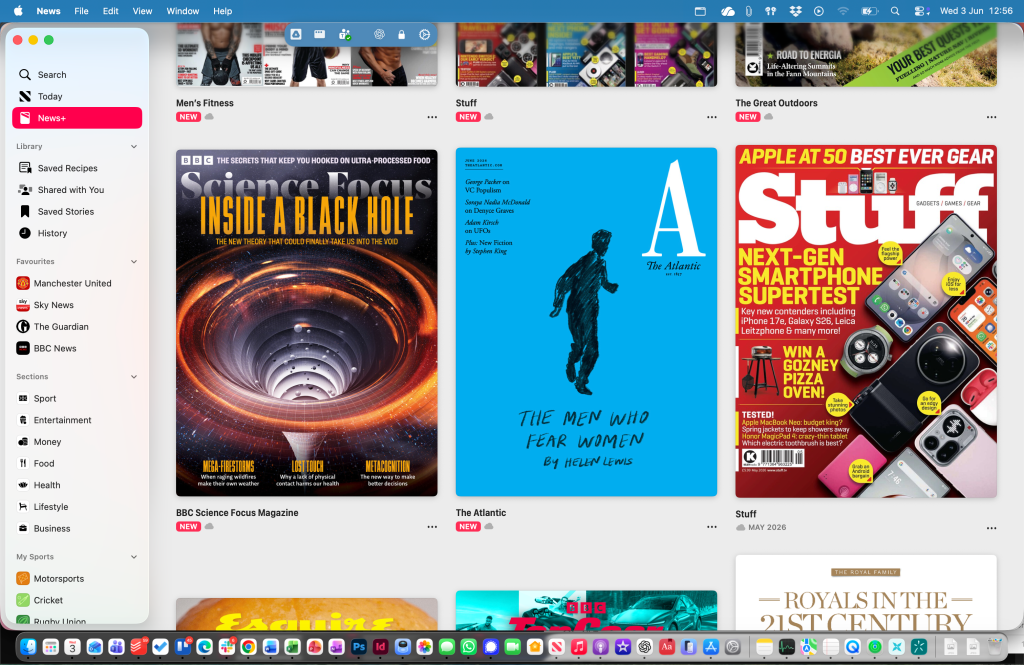
While Apple News can be enjoyed for free and you can get access to otherwise freely available content, there’s also a paid-for section which you can either pay $9.99/£9.99 for separately or you can get it as part of an Apple One subscription.
Broadly speaking, this gives you access to content that would normally cost you money in a shop. So in Stuff’s case, it gives you access to the content we normally put in our printed magazine. In the case of a newspaper like The Times, you get access to content that’s usually behind its own subscription paywall.
Finding your way around

Apple News is ridiculously simple to navigate around. Along the bottom in the iOS app you’ll see five menu items: Today, News+, Audio, Following and a Search icon.
Of these, Search will be your initial best friends, essentially continuing the work you started during set-up. Explore serves up suggested channels and topics based on the preferences you’ve already expressed. Search strips things back and lets you, um, search for specifics. There’s nothing cryptic going on here.
Subscribe to channels and topics

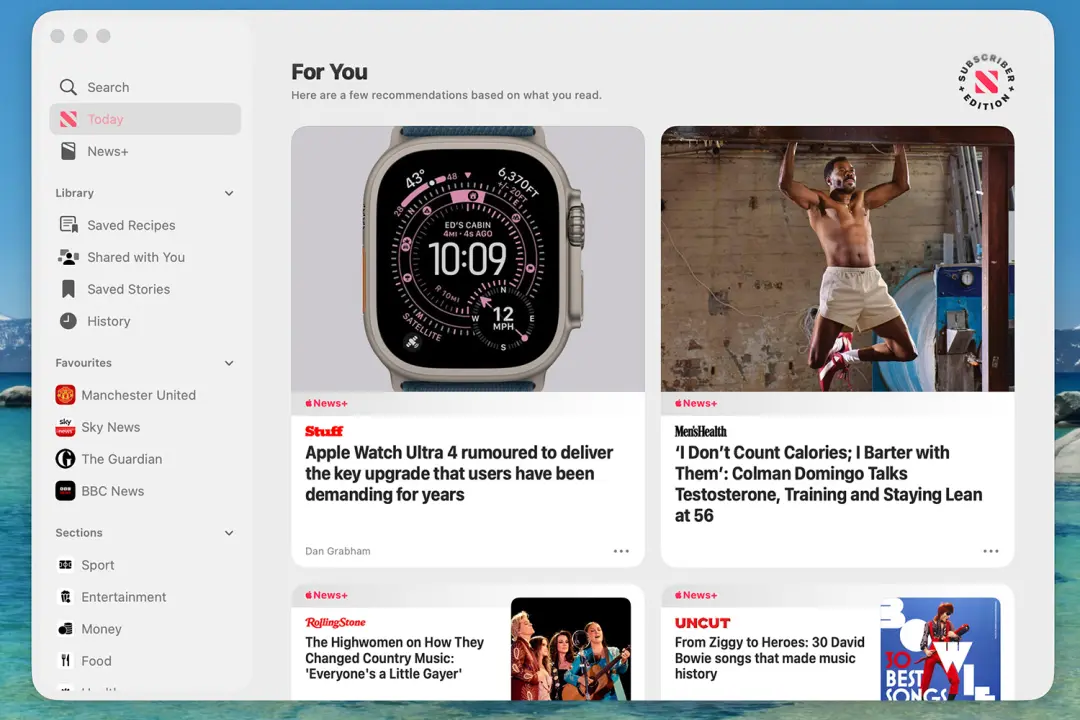
Like the look of any channels and topics you come across on your travels and you can add them to your favourites by clicking the ‘+’ button in the top-right corner of each icon. Navigate to the Favourites tab and you’ll see all your selections laid out in a simple list.
Also in this list is Saved stories and Saved recipes – yep, these are any individual articles you’ve bookmarked; you can also access your Apple News browsing history from Following too. Once on a story you can save it for later reading (by hitting the bookmark icon in the top-right), share it, or as we mentioned before, ‘like’ or ‘dislike’ it. The share icon lets you send stories to others via all the usual channels available on your iPhone, iPad and Mac.
Get to know Today

But it’s the Today tab that forms the heart of Apple News. Here you’ll see a feed of articles from the channels and topics you’ve suggested, together with others Apple News editors thinks you’ll like.
There are sections as follows: Top Stories (handpicked key stories from the day), Must reads (again handpicked), For You (just like on Apple Music, For You recommends stories based on what you read and liked), Trending Stories and then a section on Food.

You can also browse through key general interest topics from the Today screen, not just topics you have subscribed to.
When you do give it a try, make sure you follow Stuff’s channel. Oh, did I already mention that? Sorry. When you get there, click the + icon in the top right corner.


 Dan Grabham
Editor-in-Chief
Dan Grabham
Editor-in-Chief