Running with an Apple Watch? These are the settings I change first
Five minutes in your Apple Watch settings before your first run will make every run after it better – here's exactly where to start

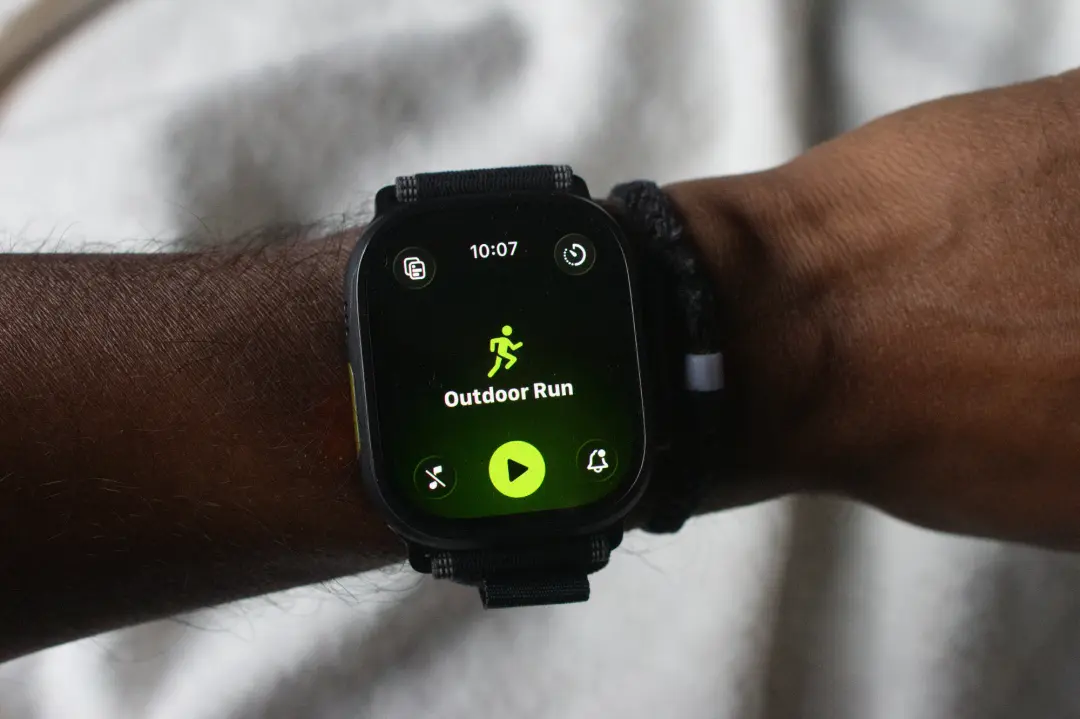
The Apple Watch is a pretty solid running watch. That wasn’t necessarily true from the start, but in true Apple fashion, it’s learnt quickly how to make a good one, and now it’s more than competing with the best running watches out there.
I’ve trained for marathons and raced a bunch with one on my wrist, and I know it’s one I can pretty much strap on and get running with a minimal fuss. That’s not to say there aren’t things I like to tinker with to make sure it’s showing me the right things, and it’s not a distraction when I’m out on a run.
While these won’t be essential tweaks for all, this is how I make sure my Apple Watch is set up to be the best running companion it can be.
1. Set the units of measurement
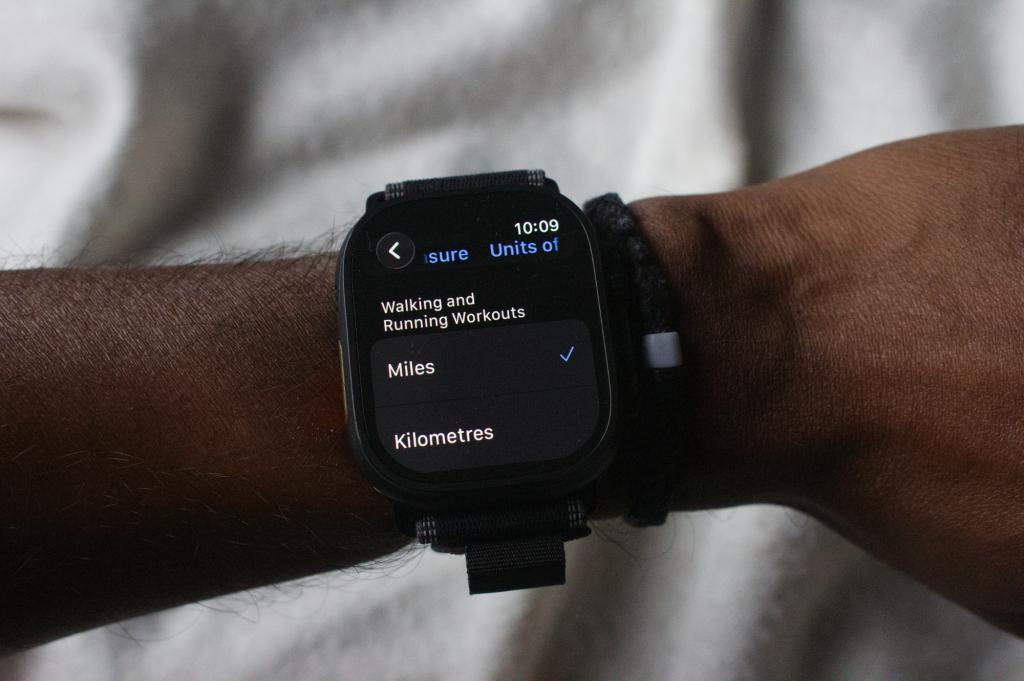
Whether you’re on team miles or team kilometres, this is absolutely one of the first things I get sorted on my Apple Watch before a run. Thankfully, this is something you can adjust on the Watch directly. You just need to head to the Workout app settings, then scroll all the way to the bottom of the screen, where you’ll find the ‘Units of Measurement’ option.
Along with adjusting units of measurement for your running distance, this is also the place you can change the energy measurement units, as well as how you want distance data to be presented if you decide to take your running session to the track.
2. Enable Precision Start on the Apple Watch Ultra
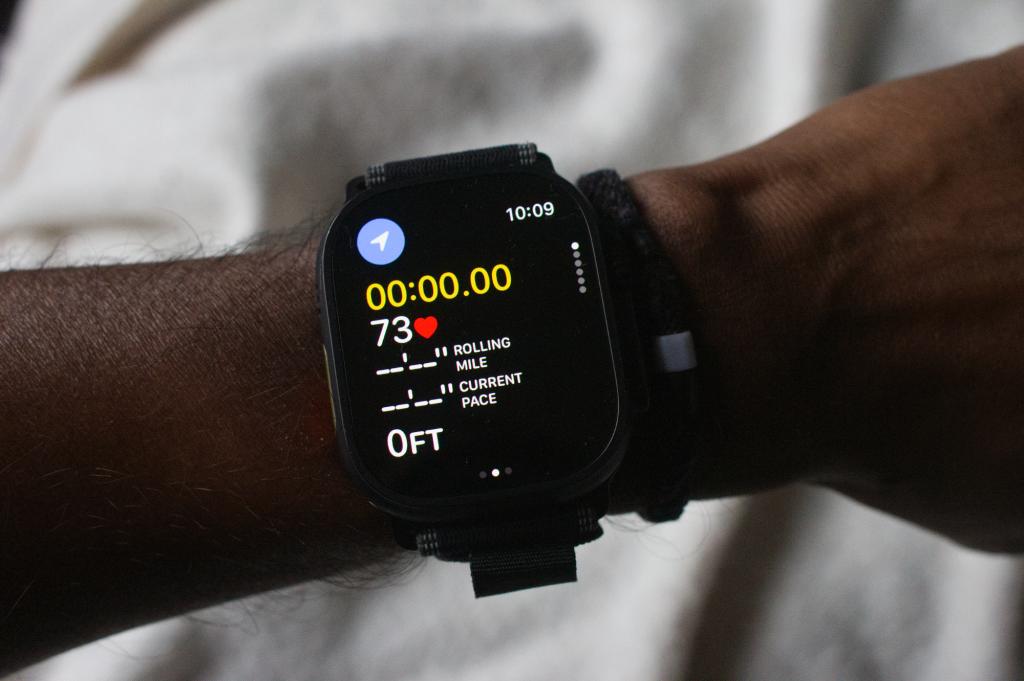
This one is only for Apple Watch Ultra users currently, but if you care about having the most accurate GPS tracking around, then you need ‘Precision Start’ in play. When turned on, you’ll be accessing Apple’s dual-band GPS mode, which will offer a bump in GPS accuracy. Especially if you’re tracking near lots of tall buildings or you’re running in deeply forested areas.
To make sure Precision Start is turned on, go to the settings menu on your Watch and look for Workout settings. Once inside that menu, scroll down and be sure to tap the toggle button next to Precision Start. You’ll know it’s on when you start tracking an outdoor run and see the small arrow in the corner of the screen. Wait for it to turn blue before you get moving.
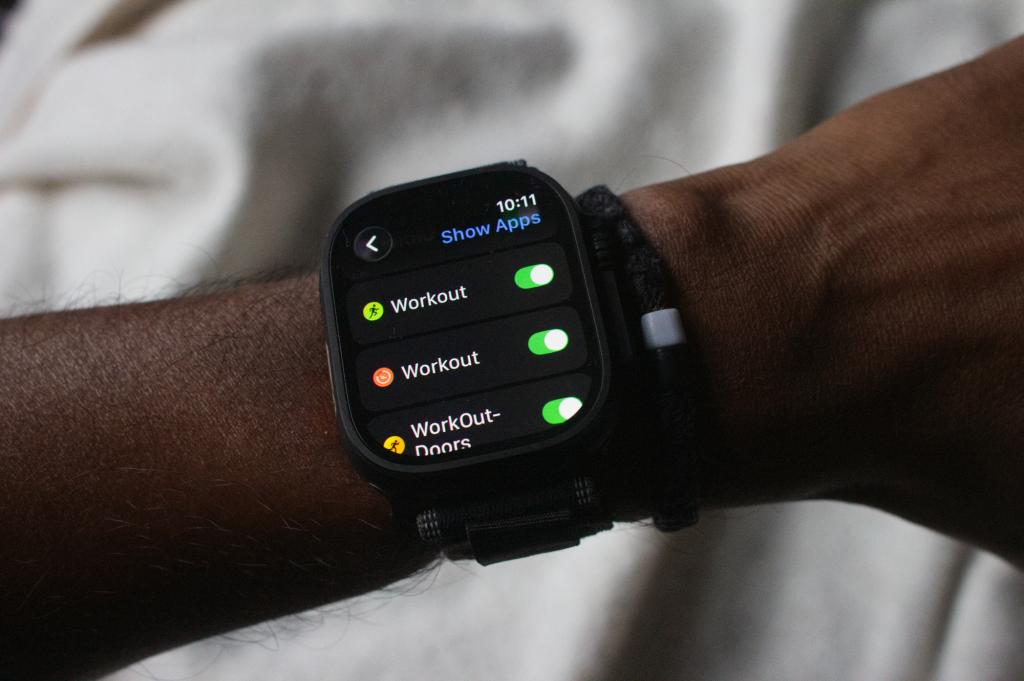
3. Keep the display in always-on mode
While I’m typically happy to rely on the excellent raise-to-wake display support outside of running, having the screen on throughout a run is key. Especially if you’re focusing on aspects like your running pace or making sure you’re sticking to the correct heart rate zone.
The quickest way to make sure the screen stays on during runs is to head to the main Watch settings. Once you’ve enabled the always-on mode in the display settings, tap Show Apps to make sure the app you use to track your runs is also selected. That includes turning it on for Apple’s own Workout app or a third-party running app you prefer to use.
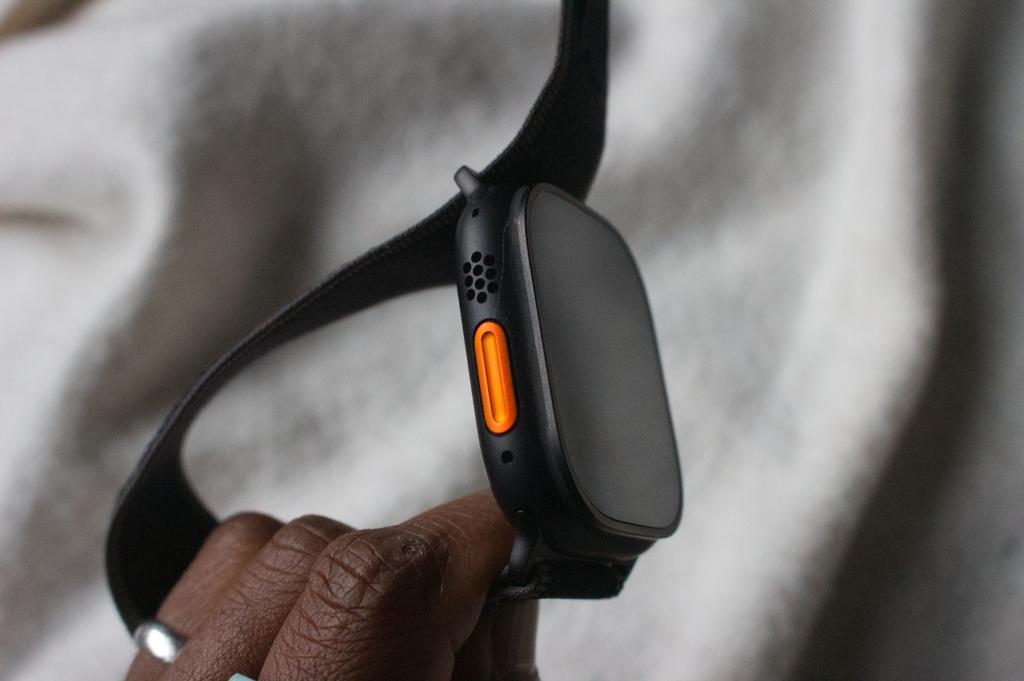
4. Disable the Action button (Apple Watch Ultra)
This is a personal preference, but I prefer the Action button on the Watch Ultra to be turned off. While I know it’s a great feature to have enabled for scenarios like when you want quicker access to a third-party Apple Watch app, or you need to make use of Apple’s navigation features, I like to turn it off completely.
If you want to do the same, you need to look for the Action Button settings on the Watch and select the action to ‘None’ to prevent any accidental pushes.
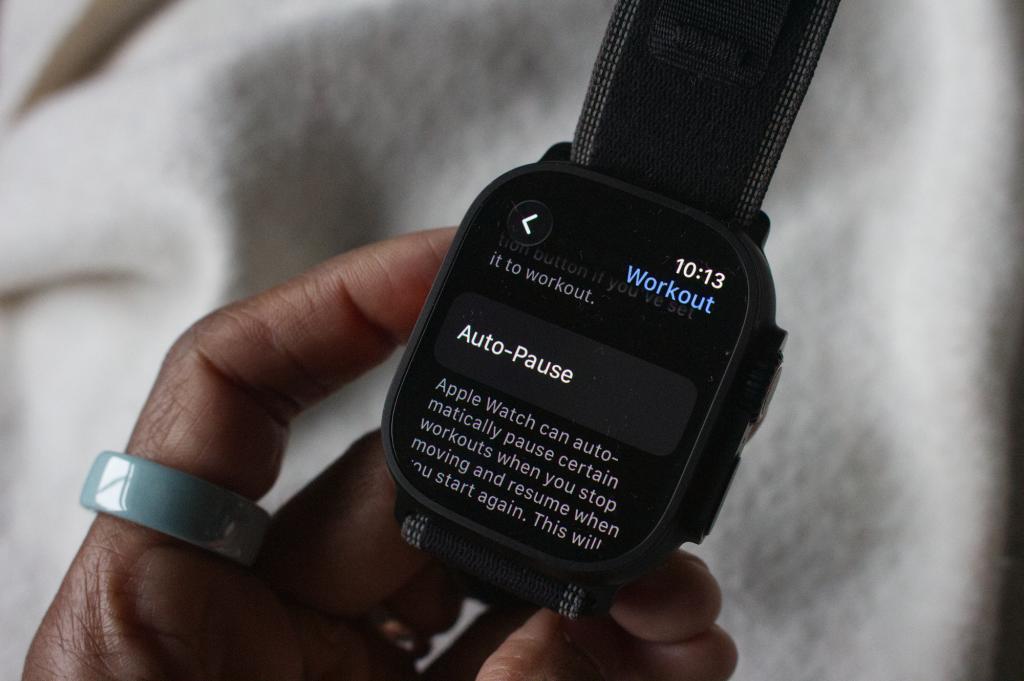
5. Turn Auto-Pause off
I firmly sat in the camp that the time you stop at lights or you’re not running during runs is all part of capturing a more accurate picture of your workout. That’s why I like to turn off the feature that pauses tracking until you resume it again.
Typically, on Apple Watches, the auto-pause mode is set to off. If for any reason it’s on and you want to disable it, go to the Workout settings, which is found inside the general settings for the Watch, and you can turn it on or off there.
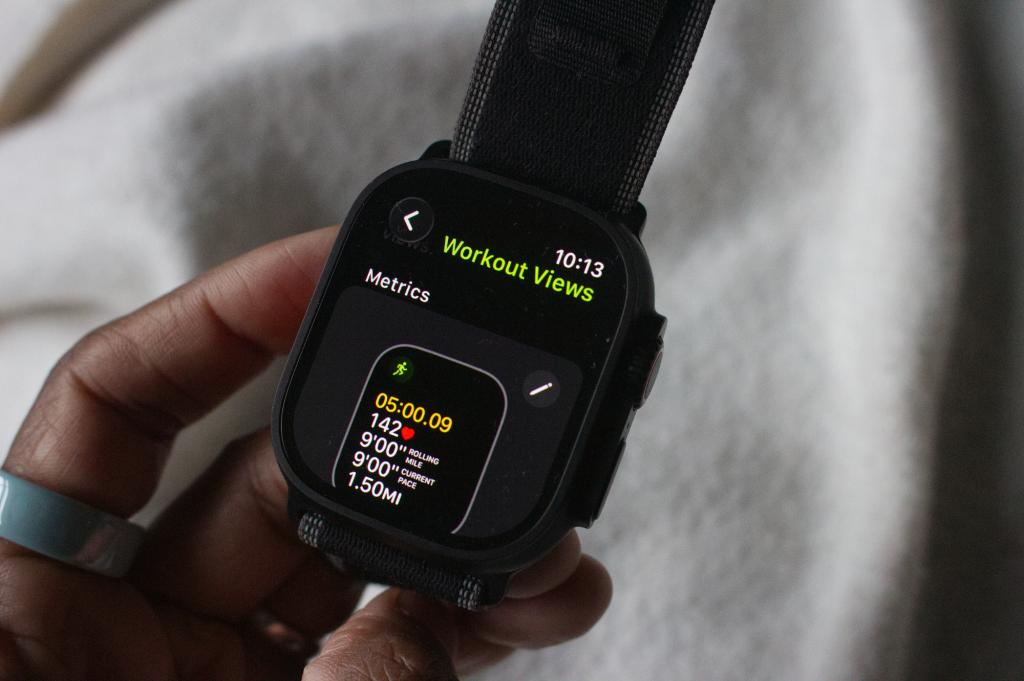
6. Organise real-time metrics
Apple gives you multiple screens to spread your running stats across, but I always like to get the first one in order and put the data I care about most there.
This mainly applies if you’re using the Workout app to track your runs. After you’ve selected a run, tap the icon in the top left-hand corner to get to Workout Views.
From here, you can edit the metrics that are shown on the two available data screens. So if you don’t care about keeping an eye on the heart rate zone you drop in and out of, that’s one thing you can choose to get rid of.
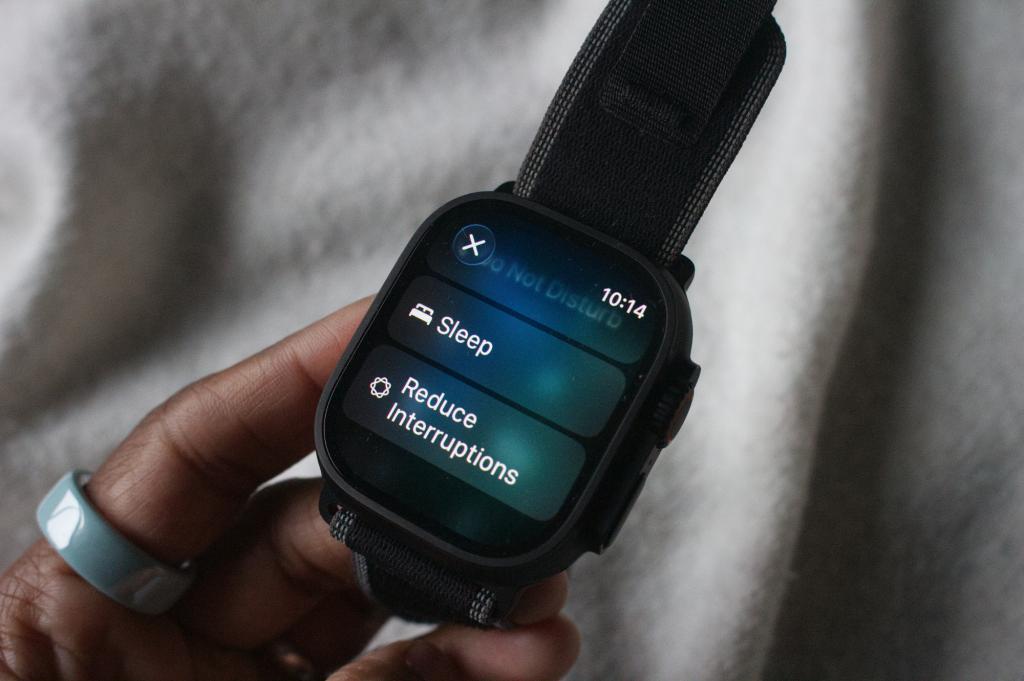
7. Ditch distracting notifications
I like to zone out during runs, which means putting a hold on notifications until I’m done. If you want to take a break from the email inbox or firing WhatsApp groups, there are a couple of ways to pause notifications directly on the Apple Watch.
The simplest option is to swipe down from the main watch face screen and to access the quick settings menu. Then tap the moon icon and either tap Do Not Disturb or Reduce Interruptions. The latter will let you be more selective on how you mute notifications while turning them back on again when you’re ready to deal with the outside noise.
Liked this? As a fitness expert, this is the fitness tech I actually use (and what I ignore)


 Michael Sawh
Stuff contributor
Michael Sawh
Stuff contributor